NCERT Solutions for Class 11 Entrepreneurship Chapter 3 Information and Communication Technology Skills are prepared for the 2026-27 syllabus with clear answers for every Check Your Progress question. The chapter covers word processors, LibreOffice Writer, formatting, spelling tools, lists, headers, footers and Track Changes. Students can revise from the PDF and use the embedded question cards for quick answer checking.
All 33 Check Your Progress questions are solved with Solution and Expert Solution tabs.
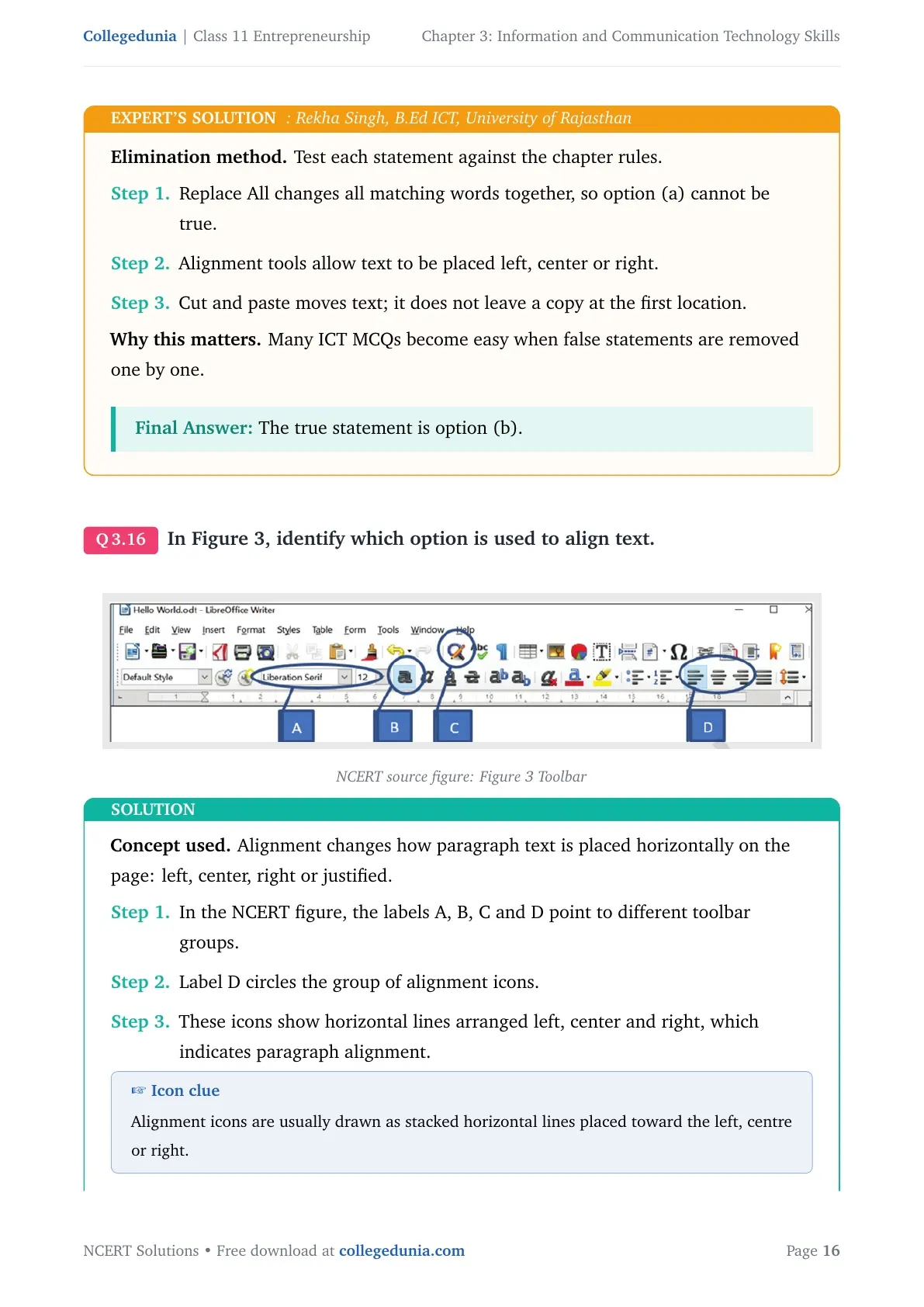
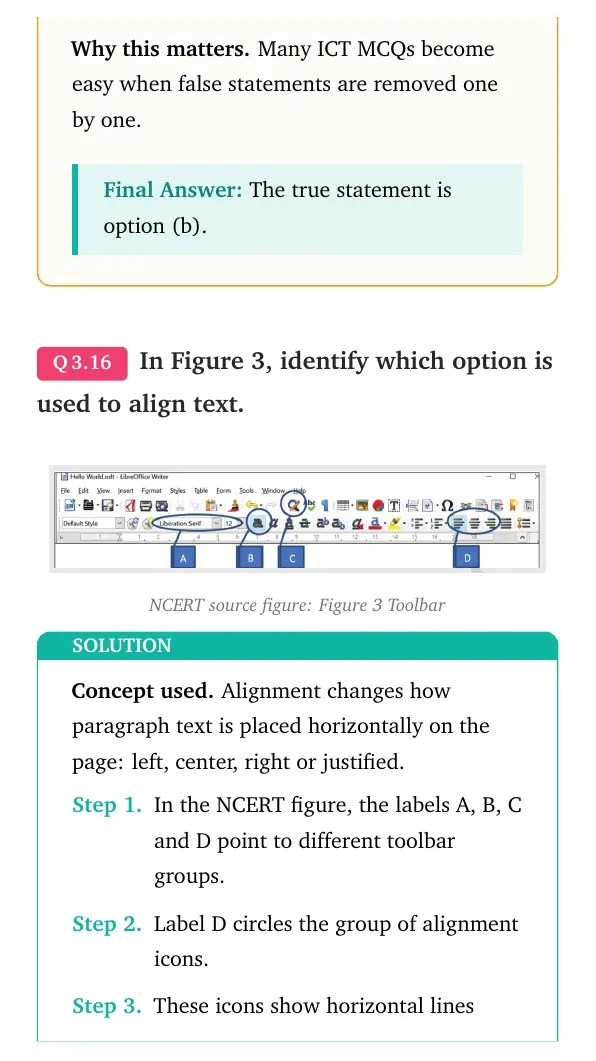
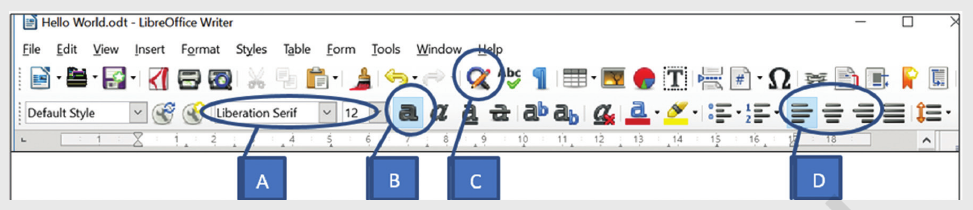
The PDF includes the NCERT toolbar figure used for the alignment question.
Answers are organised session-wise for quick Class 11 Entrepreneurship revision.
Student Feedback: More than 10,000 students use Collegedunia NCERT resources to revise solved questions, textbook figures and downloadable PDFs before school tests.
Information and Communication Technology Skills Answer Pattern
This chapter is practical and screen-based. The answers should identify the exact command, shortcut or toolbar option, then explain why the other choices do not fit the task. Information and Communication Technology Skills questions are mostly direct, but the wording often separates similar actions such as Copy, Cut, Save, Close, Correct and Correct All.
Session Area
Main Skill Tested
Best Answer Method
Word processors
Purpose, examples and document creation
Define the tool and connect it to letters, resumes and posters
LibreOffice interface
Menus, toolbar, status bar and zoom
Match each command to its menu or screen location
Document handling
Save, close, open and print
Write the File menu path and the practical result
Formatting and editing
Text style, alignment, Find and Replace, Cut and Paste
Use the selected text plus command sequence
Review tools
Spell Checker and Track Changes
Separate checking, correcting, accepting and rejecting changes
Information and Communication Technology Skills Video Lesson
Saving and Printing Documents in LibreOffice Writer
For document handling questions, always begin with the File menu. A new file needs Save or Save As because it has not yet received a name and location. An existing file can be updated with Save, while a printed copy comes through File followed by Print.
New document: Ctrl+n creates a fresh document window.
Save: File and then Save stores the latest changes.
Print: File and then Print opens the print dialog box.
Close: File and then Close shuts the current document.
Formatting Text and Editing Commands in Chapter 3
Formatting changes how text appears, while editing changes the content or its position. This difference is useful for MCQs on Bold, Underline, font size, alignment, Find and Replace, Copy, Cut and Paste.
Use Bold, Underline and font size controls after selecting the text.
Use alignment icons to place text left, center or right.
Use Find and Replace when the same word must be changed across the document.
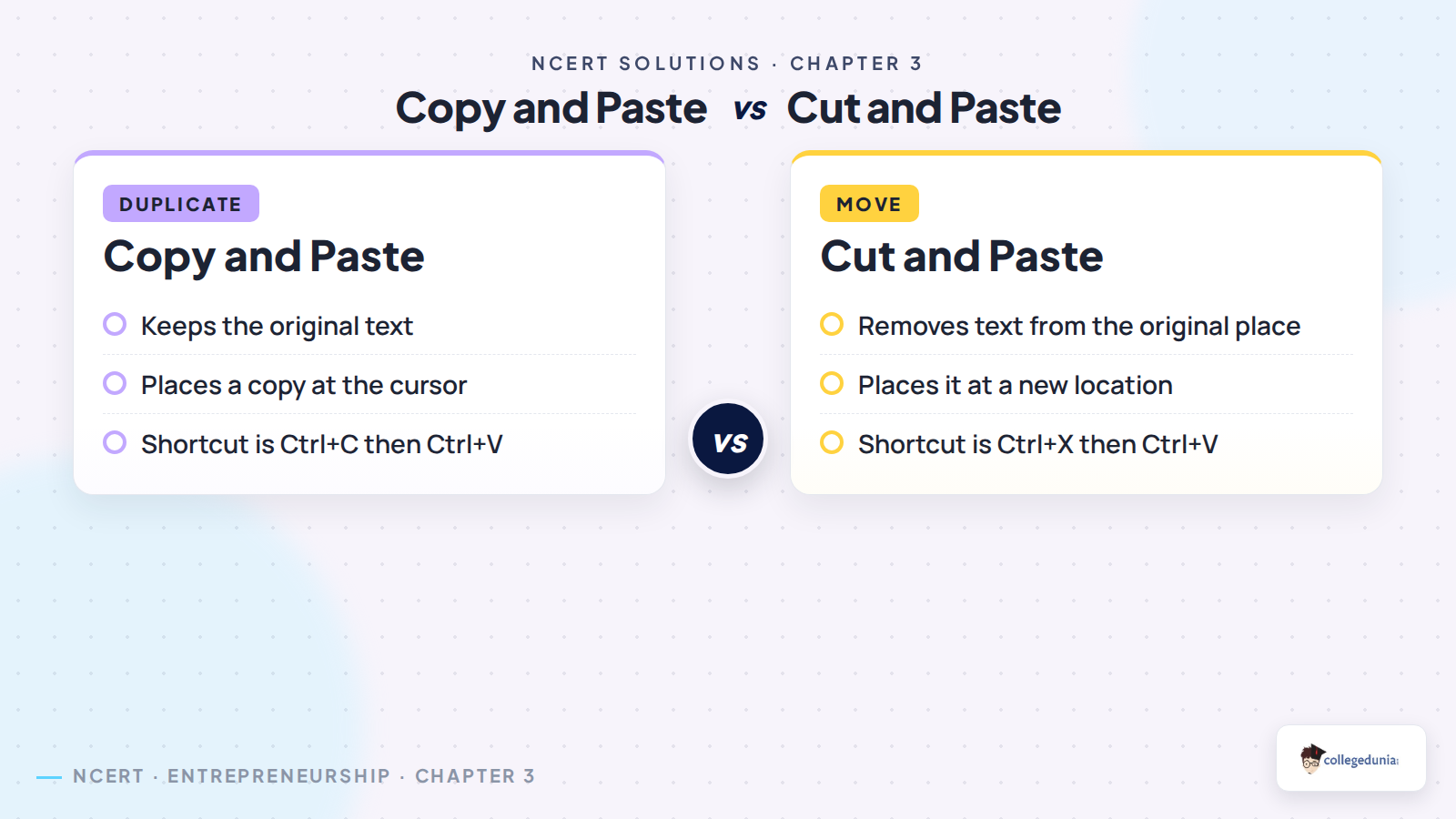
Use Cut and Paste to move text; use Copy and Paste to duplicate it.
Spell Checker, Lists, Headers and Track Changes
The later sessions connect everyday document work with accuracy and review. The Spell Checker marks incorrect spellings and grammar issues, lists organise related items, headers and footers repeat page details, and Track Changes lets a reviewer accept or reject edits.
Tool
Key Command
Use in an Answer
Spell Checker
F7 or Tools > Spelling
Use Correct All for the same wrong word repeated many times
Add to Dictionary
Spelling dialog option
Use only for correct names or special words
Bulleted List
Format > Lists > Bulleted List
Use for related points without order
Numbered List
F12
Use for ordered points or steps
Track Changes
Accept or Reject
Changes become permanent only when accepted
Entrepreneurship NCERT Solutions All Chapters
The table below keeps the same resource type together so students can continue chapter-wise practice without changing format.
All NCERT Solutions for Class 11 Entrepreneurship Chapter 3 Information and Communication Technology Skills with Step-by-Step Solutions
Each question below has two tabs. Check Solution gives the direct textbook-style answer, while Expert Solution adds an examiner-friendly way to organise the same point.
Session 1: Introduction to ICT
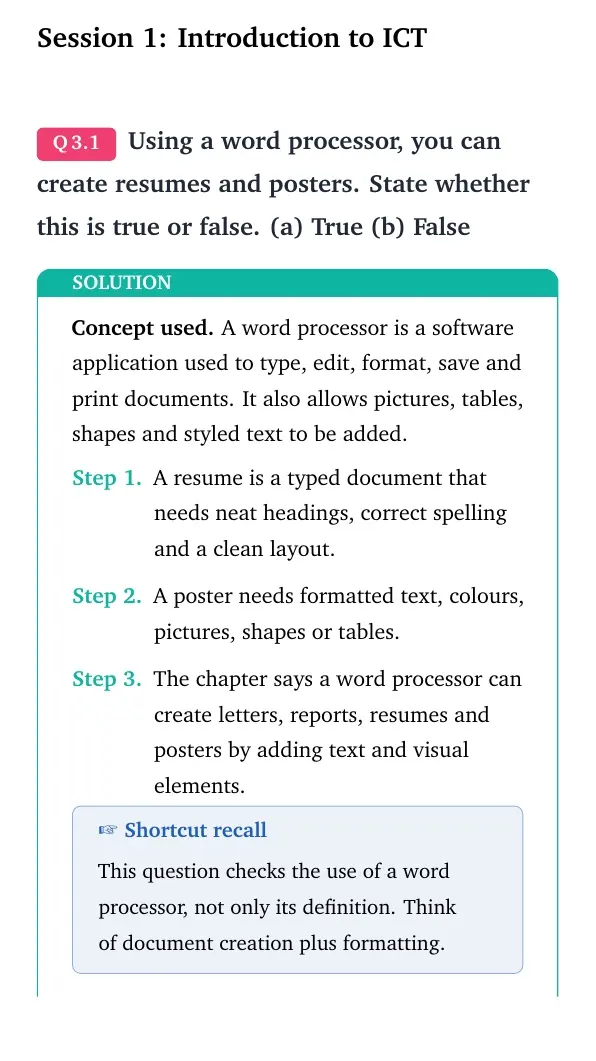
Q 3.1
Using a word processor, you can create resumes and posters. State whether this is true or false. (a) True (b) False
Concept used. A word processor is a software application used to type, edit, format, save and print documents. It also allows pictures, tables, shapes and styled text to be added.
A resume is a typed document that needs neat headings, correct spelling and a clean layout.
A poster needs formatted text, colours, pictures, shapes or tables.
The chapter says a word processor can create letters, reports, resumes and posters by adding text and visual elements.
Shortcut recall
This question checks the use of a word processor, not only its definition. Think of document creation plus formatting.
The correct option is (a) True.
MI
Meera Iyer
M.Ed Educational Technology, NIEPA Delhi
Verified Expert
Quick reading. The word "processor" may sound like plain typing, but the NCERT description includes design and layout features too.
A resume can be made with typed text, headings, font changes and spell checking.
A poster can be made with larger titles, colour, pictures, shapes and tables.
Since both tasks are directly supported by word-processing software, the statement is true.
Why this matters. In ICT questions, match the task to the software feature instead of memorising only one example.
Yes, a word processor can create resumes and posters.
Q 3.2
Which of the following options are word processors? Select all the correct options. (a) Google Docs (b) LibreOffice Writer (c) Microsoft Word (d) All of the above
Concept used. A word processor may be an installed program or an online application, as long as it allows document creation, editing and formatting.
Google Docs is an online word processor used in a browser.
LibreOffice Writer is a desktop word processor.
Microsoft Word is also a desktop word processor.
Because all three named tools are word processors, the combined option is correct.
MCQ tip
When an option says "All of the above", first test every earlier option. If none is wrong, choose it.
The correct option is (d) All of the above.
RB
Rohit Bansal
MBA Information Systems, Delhi University
Verified Expert
Category check. The question asks for examples of the same software category.
Google Docs creates and formats text documents online.
LibreOffice Writer and Microsoft Word create and format documents on a computer.
The shared function is word processing, so all examples satisfy the question.
Why this matters. NCERT often mixes online and installed tools in one list; the function is more important than the company name.
Google Docs, LibreOffice Writer and Microsoft Word are all word processors, so option (d) is correct.
Q 3.3
Which shortcut key is used to create a new document? (a) Ctrl + c (b) Ctrl + n (c) Ctrl + m (d) Ctrl + d
Concept used. A shortcut key is a keyboard combination that performs a command without opening the menu.
Ctrl + c is used for Copy, not for creating a new file.
The chapter states that Ctrl+n creates a new word document in LibreOffice Writer.
Therefore, the shortcut for a new document is Ctrl + n.
Memory cue
The letter "n" in Ctrl+n stands for "new", which is why it is easier to remember.
The correct option is (b) Ctrl + n.
AS
Ananya Sharma
B.Tech Computer Science, IP University
Verified Expert
Shortcut logic. Keyboard shortcuts usually pair Ctrl with the first useful letter of the command.
For a new document, the command word is "New".
LibreOffice Writer uses Ctrl+n for this command.
The other options do not open a new document in the chapter context.
Why this matters. Shortcut questions are scoring because they need one exact recall point.
Use Ctrl + n to create a new document.
Q 3.4
List the advantages of using a word processor to write a letter.
Concept used. A word processor improves document preparation because it supports editing, formatting, saving, printing and checking language.
A letter can be corrected easily. Extra words can be added and unwanted words can be removed without rewriting the whole page.
Spelling and grammar tools help reduce language mistakes.
The file can be saved and opened later for changes or printing.
Font style, font size, colour and layout can be changed to make the letter neat.
Pictures, tables, shapes or lists can also be inserted if the letter needs them.
Practical use
The main gain is speed plus neatness: the same letter can be corrected, formatted and printed many times.
A word processor makes a letter easy to edit, format, save, print, check for spelling and present neatly.
KM
Kavita Menon
M.Com Business Communication, Madras University
Verified Expert
Answer structure. For a subjective ICT answer, list the feature first and then its benefit.
Editing helps change words after review.
Spell check and grammar check improve correctness.
Saving allows the same letter to be reused later.
Formatting gives a formal look through font, size and colour choices.
Printing creates a hard copy whenever required.
Why this matters. A letter is a business document, so accuracy and presentation both count.
The advantages are easy correction, spelling support, saving, printing and neat formatting.
Session 2: Basic Interface of LibreOffice Writer
Q 3.5
Undo, cut, copy and paste are __________ commands. (a) View (b) Edit (c) Styles (d) File
Concept used. The Edit menu contains commands that change the content of a document.
Undo changes the last action in the document.
Cut, copy and paste are used to move or duplicate selected text.
All these commands work on the content, so they belong to the Edit menu.
Menu recall
File handles the document as a whole, while Edit handles the content inside it.
The correct option is (b) Edit.
SK
Sanjay Kapoor
MCA, IGNOU
Verified Expert
Function test. Ask what the command changes.
View changes display, not text content.
File handles actions such as save, print and close.
Undo, cut, copy and paste directly change or control selected text.
Why this matters. Menu questions become simple when each menu is linked with its purpose.
Undo, cut, copy and paste are Edit commands.
Q 3.6
You can change the magnification of the page, that is, make it bigger or smaller, using __________ option. (a) Page indicator (b) Proofing level (c) Zoom bar (d) Help
Concept used. Magnification changes how large the page appears on the screen without changing the actual font size.
The page indicator tells which page is being viewed.
Help opens support information.
The Zoom bar is used to zoom in or zoom out of the document view.
Do not mix up
Zooming makes the document look bigger on screen. It does not permanently increase the printed font size.
The correct option is (c) Zoom bar.
FK
Farah Khan
BCA, Jamia Millia Islamia
Verified Expert
Interface clue. The word "magnification" points to viewing size, not editing or printing.
LibreOffice Writer shows the Zoom bar on the status bar area.
Moving the zoom control changes the visible size of the page.
Since the question asks for making the page appear bigger or smaller, Zoom bar fits exactly.
Why this matters. Zoom helps read a document comfortably while keeping the document's real formatting unchanged.
Use the Zoom bar to change page magnification.
Q 3.7
On the __________ side of the status bar, you can see page number and word count in LibreOffice. (a) right (b) centre (c) left (d) middle
Concept used. The status bar displays document information and quick view controls at the bottom of the LibreOffice Writer window.
NCERT states that word count, page number and other details appear on the left side.
The bottom right area is used for document view options and zoom controls.
Therefore, page number and word count are seen on the left side of the status bar.
Screen scan
When identifying screen parts, read the bottom strip from left to right: details first, view and zoom controls later.
The correct option is (c) left.
NV
Nidhi Verma
PG Diploma ICT Education, CIET NCERT
Verified Expert
Location check. The question tests position on the interface.
The status bar is at the bottom of the Writer window.
Its left side shows document details such as page number and word count.
Its right side is more connected with view and zoom options.
Why this matters. Interface questions are easiest when you connect a location with its visible information.
Page number and word count are on the left side of the status bar.
Q 3.8
Which menu option has the commands Save, Print and Close? (a) Insert (b) File (c) Tools (d) Format
Concept used. The File menu contains commands that apply to the document as a complete file.
Save stores the document.
Print sends the document to a printer.
Close shuts the open document.
These are whole-document commands, so they are found in the File menu.
Menu grouping
If a command handles the entire document file, look first under File.
The correct option is (b) File.
AR
Arvind Rao
B.Ed Computer Education, RIE Mysuru
Verified Expert
Command grouping. Save, Print and Close do not format selected text. They control the document file.
Insert adds objects, so it does not match Save or Print.
Format changes appearance, so it does not match Close.
File is the menu for opening, saving, printing and closing a document.
Why this matters. In practical software use, choosing the right menu saves time and avoids trial-and-error.
Save, Print and Close are found under the File menu.
Q 3.9
List the different ways in which text can be formatted in the following ways: (a) Made bold (b) Underlined (c) Font made bigger in size
Concept used. Formatting changes the appearance of selected text without changing the words themselves.
To make text bold, select the text and click the Bold icon on the Formatting Toolbar, or use Ctrl+B.
To underline text, select it and click the Underline icon, or use Ctrl+U.
To make the font bigger, select the text and choose a larger number from the font-size drop-down in the toolbar.
These changes can also be reached through the Format menu or by using the context menu after right-clicking the selected text.
Presentation value
Formatting highlights headings and important words, making a document easier to read.
Bold uses the Bold icon or Ctrl+B, underline uses the Underline icon or Ctrl+U, and bigger text uses the font-size drop-down after selecting the text.
PS
Pooja Sethi
MA Educational Technology, Tata Institute of Social Sciences
Verified Expert
Action sequence. Most formatting commands follow the same order: select text first, then apply the command.
Select the word, line or paragraph to be formatted.
For bold, press Ctrl+B or click the Bold icon.
For underline, press Ctrl+U or click the Underline icon.
For bigger font, open the size drop-down and choose a larger size such as 14 instead of 12.
Why this matters. The same select-then-command pattern works for many formatting tasks.
Select the text, then use Bold, Underline or Font Size controls as required.
Session 3: Saving, Closing, Opening and Printing Document
Q 3.10
What is the shortcut to save the changes made to an existing file? (a) FILE SAVE (b) INSERT SAVE (c) HOME SAVE
Concept used. Saving records changes in the document file so they remain available after the document is closed.
An existing file has already been named and stored once.
To save new changes, use the File menu because saving is a document-file command.
Click File and then Save to store the latest changes.
Same menu family
New, Open, Save, Print and Close belong to File because they affect the whole document file.
The correct option is (a) FILE SAVE.
RN
Rahul Nair
B.Sc Computer Applications, Calicut University
Verified Expert
Practical route. Saving is not an insert action and it is not a home-tab formatting command.
The document already exists, so the user only needs to update it.
LibreOffice Writer keeps Save under the File menu.
Selecting File and then Save writes the latest work into the same file.
Why this matters. Frequent saving prevents loss of typed content.
Use FILE SAVE to save changes in an existing file.
Q 3.11
What is the shortcut to close a document? (a) FILE SAVE (b) FILE CLOSE (c) FILE EXIT
Concept used. Closing a document means shutting the currently open document window after saving any needed changes.
Save stores changes but keeps the document open.
Exit closes the application, while the question asks for closing a document.
NCERT states that to close a document, click File and then Close.
Close versus exit
Close is for the current document. Exit is usually for leaving the whole application.
The correct option is (b) FILE CLOSE.
LT
Leena Thomas
B.Com Computer Applications, MG University
Verified Expert
Precise command. The option must match the exact action asked in the question.
The action is not saving, because saving and closing are different.
The action is not exiting the full program.
The exact menu path for closing the document is File followed by Close.
Why this matters. Practical software exams often reward the exact menu path.
The correct route is FILE CLOSE.
Q 3.12
What is the shortcut to print a document? (a) FILE EXPORT (b) FILE SEND (c) FILE PRINT
Concept used. Printing sends the document to a connected printer after the user chooses printer settings.
Export saves the document in another file form; it does not print the document.
Send shares or sends the document; it is not the printing command.
NCERT says to click File and then Print to open the Print dialog box.
Command word
In menu-path questions, the final word usually gives the answer: Print means choose the Print command.
The correct option is (c) FILE PRINT.
DP
Devika Pillai
M.Sc Information Technology, Bharathiar University
Verified Expert
Action match. The menu path should directly produce a printed copy.
File Export creates another file type.
File Send is for sending, not printing.
File Print opens the print dialog and then the printer can print the document.
Why this matters. Knowing the right command prevents accidental file conversion when a hard copy is required.
Choose FILE PRINT to print the document.
Q 3.13
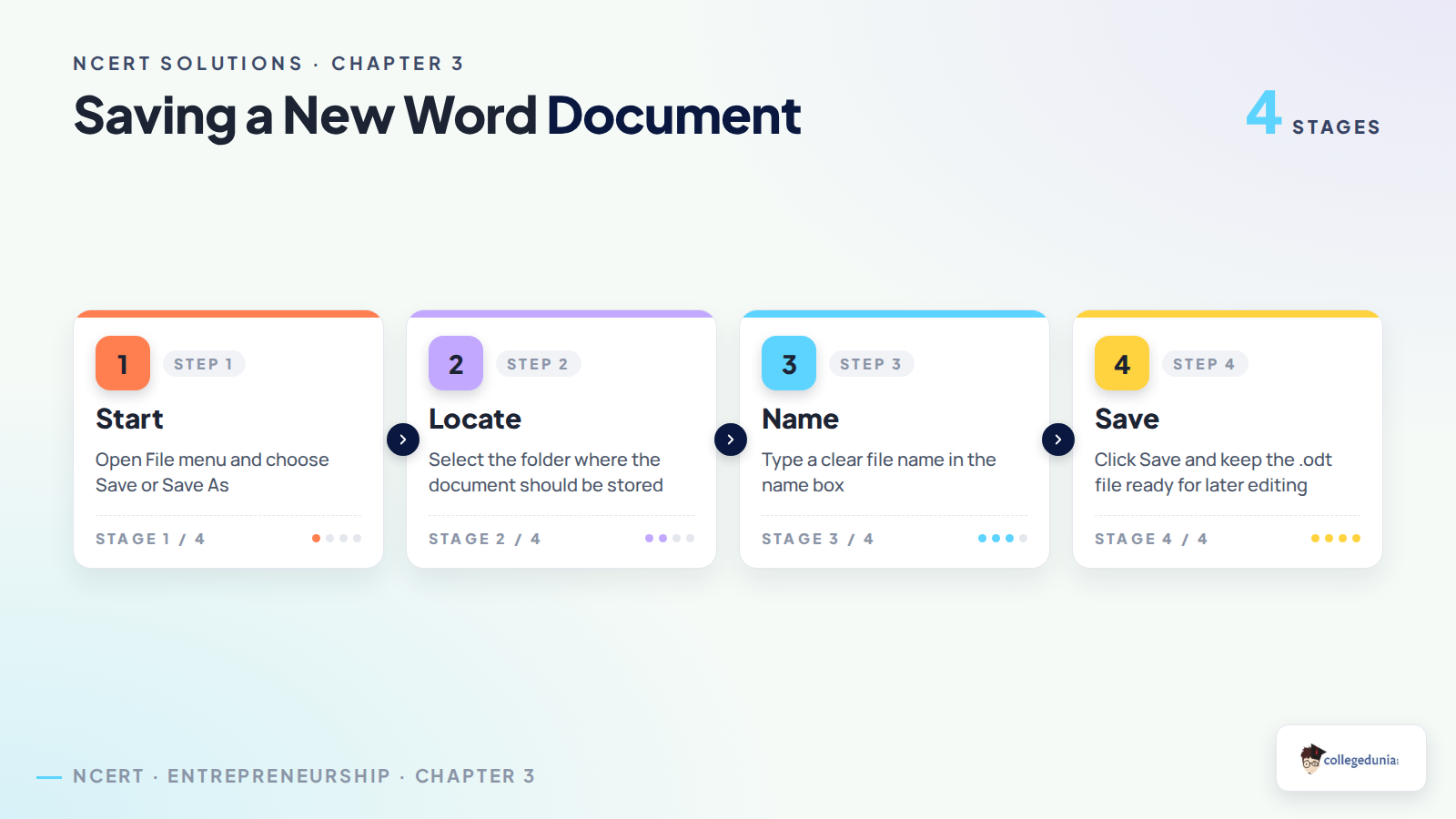
Give the steps to save a new word document.
Concept used. Saving a new document creates a stored file with a name and location chosen by the user.
Click File and then choose Save or Save As.
The Save As dialog box opens because the document is new.
Browse to the required folder.
Type the file name, such as Hello World, in the name box.
Click Save. LibreOffice Writer saves the file with the default .odt extension unless another file type is selected.
File habit
Saving early gives the document a location, so later changes can be saved quickly.
Click File, choose Save or Save As, select the folder, type the file name and click Save.
IQ
Imran Qureshi
PGDCA, Aligarh Muslim University
Verified Expert
Process view. Saving a new file needs three decisions: where to save, what name to give, and which file type to keep.
Start from File Save or File Save As.
In the dialog box, choose the folder where the document should be stored.
Enter a clear file name and confirm by clicking Save.
If no other type is chosen, LibreOffice Writer saves it as an .odt file.
Why this matters. Clear file names and correct folders make the document easy to find later.
Use File Save or Save As, choose location, enter name and press Save.
Session 4: Formatting Text in a Word Document
Q 3.14
Priya wants to change the spelling of a word in the entire document. Which option will she use? (a) Copy (b) Align Left (c) Find & Replace (d) Paste
Concept used. Find and Replace locates a word in a document and can replace it with another word, including all matching words in one go.
Copy duplicates selected text.
Align Left changes paragraph alignment.
Paste inserts copied or cut text at the cursor.
Find & Replace searches for a word and changes it wherever required.
Whole document clue
The phrase "entire document" points to a search-and-replace command, not a single edit.
The correct option is (c) Find & Replace.
VJ
Vikram Joshi
MBA Digital Business, NMIMS
Verified Expert
Task mapping. Priya does not want to move or format text; she wants to correct a repeated word.
The wrong spelling must first be found.
The correct spelling must then replace the old one.
Find & Replace is designed for exactly this two-part task.
Why this matters. It saves time when the same mistake appears many times.
Priya should use Find & Replace.
Q 3.15
Which of the following statements is true? (a) You cannot replace all matching words with another word in one go (b) You can align text in the center (c) When we use cut and paste, the text appears in both the places
Concept used. Formatting text includes changing paragraph alignment, while editing commands such as cut, copy, paste and replace change content placement or wording.
Statement (a) is false because Find & Replace can replace all matching words in one go.
Statement (b) is true because the chapter explains left, right and center alignment.
Statement (c) is false because cut removes the text from the original place before paste inserts it elsewhere.
Copy versus cut
Text appears in both places only with copy and paste, not with cut and paste.
The correct option is (b) You can align text in the center.
RS
Rekha Singh
B.Ed ICT, University of Rajasthan
Verified Expert
Elimination method. Test each statement against the chapter rules.
Replace All changes all matching words together, so option (a) cannot be true.
Alignment tools allow text to be placed left, center or right.
Cut and paste moves text; it does not leave a copy at the first location.
Why this matters. Many ICT MCQs become easy when false statements are removed one by one.
The true statement is option (b).
Q 3.16
In Figure 3, identify which option is used to align text.
NCERT source figure: Figure 3 Toolbar
Concept used. Alignment changes how paragraph text is placed horizontally on the page: left, center, right or justified.
In the NCERT figure, the labels A, B, C and D point to different toolbar groups.
Label D circles the group of alignment icons.
These icons show horizontal lines arranged left, center and right, which indicates paragraph alignment.
Icon clue
Alignment icons are usually drawn as stacked horizontal lines placed toward the left, centre or right.
Option D is used to align text.
TM
Tanya Malhotra
B.Tech Information Technology, GGSIPU
Verified Expert
Visual reading. Do not read the toolbar from left to right blindly; identify what the icon shape represents.
A points near font family and font size controls.
B and C point to other formatting and checking tools.
D points to the icons with line groups, which are the alignment controls.
Why this matters. Practical ICT questions often require recognising icons, not only memorising menu names.
The alignment option is D.
Q 3.17
List the steps to be performed to move the text from one location to another in a document.
Concept used. Moving text means removing selected text from its original place and placing it at a new location by using Cut and Paste.
Select the text that has to be moved.
Click the Cut icon on the toolbar or press Ctrl+X. The selected text disappears from the original place.
Place the cursor at the new location where the text is required.
Click the Paste icon or press Ctrl+V.
The selected text appears at the new location.
Exact verb
Use "move" for Cut plus Paste, and use "copy" for Copy plus Paste.
Select the text, cut it, place the cursor at the new location and paste it there.
SC
Sameer Chawla
MCA, Guru Gobind Singh Indraprastha University
Verified Expert
Cause and effect. Cut removes first, Paste inserts next.
Mark the text by selecting it.
Use Cut from the toolbar or Ctrl+X to remove it from its first position.
Click at the target position in the document.
Use Paste or Ctrl+V to place the cut text there.
Why this matters. The method keeps the document content from being duplicated accidentally.
Move text by selecting it, cutting it, clicking the new position and pasting it.
Session 5: Checking Spelling and Grammar
Q 3.18
Which menu option will you use to start the spell checker in LibreOffice Writer? (a) Tools Spelling (b) Tools Automatic Spell Checking (c) Tools Language (d) Tools Options
Concept used. The spell checker checks spelling and grammar mistakes and suggests corrections.
The chapter says the spelling checker can be started from the toolbar icon or by pressing F7.
It can also be started from the menu by clicking Tools and then Spelling.
Automatic Spell Checking only turns automatic marking on or off; it is not the main menu command asked here.
Tool menu clue
Language support, spelling and grammar tools are grouped under the Tools menu.
The correct option is (a) Tools Spelling.
AM
Alok Mishra
B.Sc IT, Lucknow University
Verified Expert
Menu reading. The question asks how to start the spell checker, not how to toggle automatic checking.
Start means opening the checking dialog or command.
Tools Spelling starts the spell checker.
Tools Automatic Spell Checking switches the underline feature on or off.
Why this matters. Menu options with similar names need exact reading.
Use Tools Spelling.
Q 3.19
Which shortcut key will you use to start the Spell Checker? (a) F5 (b) F1 (c) F7 (d) F9
Concept used. A function key can directly run a software command without opening the menu.
NCERT states that the spell checker can be started by pressing F7.
F1 is commonly linked with Help, so it is not the spell-check command in this chapter.
Therefore, F7 is the required shortcut key.
One-key recall
Spell checker in this chapter is linked with F7; automatic spell checking is linked with Shift+F7.
The correct option is (c) F7.
NB
Namrata Bose
BCA, University of Calcutta
Verified Expert
Shortcut separation. The answer must be the key that starts the checker itself.
Read the wording: it says "start the Spell Checker".
LibreOffice Writer uses F7 for starting the spell-check tool.
Other keys in the options do not match the NCERT statement.
Why this matters. Shortcut-key questions are quick marks when the exact pair is recalled.
Press F7 to start the Spell Checker.
Q 3.20
Ravi wrote an article on the benefits of sports. But everywhere he spelt the word sports as spots. Which option in the Spelling dialog box will you use to change all the wrong words to the right one in one go? (a) Correct (b) Always Correct (c) Add to Dictionary (d) Correct All
Concept used. Correct All changes all occurrences of the highlighted misspelled word to the selected suggestion.
The error appears everywhere, so correcting only one occurrence is not enough.
Correct changes the highlighted word once.
Add to Dictionary would mark a word as acceptable and would not fix the spelling mistake.
Correct All changes every occurrence in one go.
Wrong option trap
Do not choose Add to Dictionary for a misspelled common word. That option is for names or special words that are actually correct.
The correct option is (d) Correct All.
GS
Gaurav Sinha
M.Sc Computer Science, Patna University
Verified Expert
Scale of correction. The clue is "everywhere" and "in one go".
Ravi made the same spelling mistake throughout the article.
The command must apply to all occurrences, not just the current one.
Correct All is the dialog-box option that changes every matching mistake together.
Why this matters. The answer changes when the question says one word or all words.
Use Correct All.
Q 3.21
What can you do to make the Spell Checker see your name as a correct word and not highlight it as an error in any document?
Concept used. The spell checker compares words with its dictionary. A proper name may be marked wrong if it is not already in that dictionary.
Right-click the highlighted name or open the Spelling dialog box.
Choose the option Add to Dictionary.
After the name is added, the spell checker treats it as a correct word.
The name will not be highlighted as an error in future documents.
Name handling
Indian names, company names and place names may not always be in the default dictionary, so this option is useful.
Add the name to the dictionary using the Add to Dictionary option.
MA
Mansi Agarwal
B.Ed Business Studies, University of Mumbai
Verified Expert
Correct use of the option. Add to Dictionary should be used only when the highlighted word is actually correct.
Check that the name has been typed correctly.
Select Add to Dictionary from the spelling options.
The word processor saves the name as an accepted word.
In later documents, the same name will not be shown as an error.
Why this matters. It prevents repeated false spelling warnings for valid proper nouns.
Use Add to Dictionary for your correctly typed name.
Session 6: Inserting Lists, Tables, Pictures, and Shapes
Q 3.22
Which is the correct sequence to create a bulleted list in LibreOffice Writer? (a) Bulleted List Format Lists (b) Format Bulleted List Lists (c) Format Lists Bulleted List (d) Lists Format Bulleted List
Concept used. A bulleted list formats selected lines with bullet symbols so related items appear as a list.
First type the items on different lines and select them.
Open the Format menu because lists change the appearance of selected text.
From Format, choose Lists.
From Lists, choose Bulleted List.
Order recall
The path moves from broad to specific: Format, then Lists, then Bulleted List.
The correct option is (c) Format Lists Bulleted List.
HK
Harish Kumar
Diploma Computer Applications, NIOS
Verified Expert
Menu sequence. A menu path should always begin with the top-level menu.
Format is the top-level menu for appearance changes.
Lists is the group inside Format.
Bulleted List is the final choice inside Lists.
Why this matters. Understanding menu order helps in both MCQs and practical lab tasks.
Choose Format Lists Bulleted List.
Q 3.23
What are the shortcut keys to insert a table in LibreOffice Writer? (a) F12 (b) Ctrl+F12 (c) F7 (d) F9
Concept used. A table arranges data in rows and columns, and LibreOffice Writer provides both an icon and a keyboard shortcut for inserting it.
F12 creates a numbered list in this chapter.
F7 starts the Spell Checker.
The chapter states that a table can be inserted by clicking the Insert Table icon or pressing Ctrl+F12.
Shortcut family
Ctrl+F12 inserts a table; F12 alone creates a numbered list.
The correct option is (b) Ctrl+F12.
BJ
Bhavna Jain
B.Sc Computer Science, DAVV Indore
Verified Expert
Option comparison. Several function keys appear in the same chapter, so compare them by task.
A table is a row-and-column object.
NCERT gives Ctrl+F12 as the table shortcut.
F12 by itself is not enough for table insertion in this question.
Why this matters. Shortcuts that share the same function key can be confused unless the modifier key is noted.
Use Ctrl+F12 to insert a table.
Q 3.24
What is the shortcut key to create a numbered list? (a) Ctrl+F12 (b) Shift+F12 (c) F12 (d) None
Concept used. A numbered list orders selected items with numbers instead of bullet symbols.
Ctrl+F12 is used to insert a table.
Shift+F12 is used for creating a bulleted list in LibreOffice Writer.
NCERT states that a numbered list can be created by pressing F12.
Similar shortcuts
Do not confuse Shift+F12 for bullets with F12 for numbering.
The correct option is (c) F12.
CG
Charu Gupta
M.Sc ICT, Amity University
Verified Expert
List distinction. Numbered and bulleted lists look similar but use different shortcuts in the chapter.
A bulleted list uses a symbol and can use Shift+F12.
A numbered list uses 1, 2, 3 and can use F12.
Therefore, F12 is the shortcut asked here.
Why this matters. In lab work, the shortcut saves time only if the list type is chosen correctly.
Press F12 to create a numbered list.
Q 3.25
What is a list and how do we create a list in a word processor?
Concept used. A list is a set of related items shown one below another, usually with bullets or numbers.
Type each item of the list on a separate line.
Select all the items that should become a list.
For a bulleted list, choose Format Lists Bulleted List, or press Shift+F12.
For a numbered list, choose Format Lists Numbered List, or press F12.
The word processor changes the selected lines into a clear list.
Document clarity
Lists make information easy to scan, especially for ingredients, tasks, books or steps.
A list is a group of items shown with bullets or numbers. Create it by typing items on separate lines, selecting them and applying a bulleted or numbered list command.
PD
Priyanka Desai
MBA Entrepreneurship, Gujarat University
Verified Expert
Business use. Lists are useful when information must be read quickly.
Put every item on a different line, such as a list of products or tasks.
Highlight all the lines.
Use the Lists option under Format to choose bullets or numbers.
A shortcut can also be used: Shift+F12 for bullets or F12 for numbering.
Why this matters. Entrepreneurs often prepare task lists, inventory lists and report points in this form.
A list presents related items in bullet or number form and is created by selecting item lines and applying the list command.
Session 7: Headers, Footers and Page Numbers
Q 3.26
Which of the following statements is true? (a) Headers are inserted in the bottom margin of the page (b) If you insert footer in one page, it appears on all pages (c) Headers are used to insert borders in a document (d) You cannot insert date, time and page number in header or footer
Concept used. A header appears at the top margin and a footer appears at the bottom margin, usually repeating on pages of the document.
Statement (a) is false because headers are placed at the top, not the bottom.
Statement (b) is true because a footer inserted in the document appears on all pages.
Statement (c) is false because headers are not meant for document borders.
Statement (d) is false because date, time and page number can be inserted in headers or footers.
Top-bottom clue
Header means head of the page; footer means foot of the page.
The correct option is (b) If you insert footer in one page, it appears on all pages.
AR
Amitabh Roy
M.Ed ICT, Banaras Hindu University
Verified Expert
Definition route. Use the meaning of header and footer to test each option.
Header is the top part of the page.
Footer is the bottom part and commonly repeats through the document.
Headers and footers can contain useful repeated fields such as page number, date and title.
Why this matters. Repeating document information is useful in reports and assignments.
The true statement is option (b).
Q 3.27
Which options can you add to a header? (a) Page number (b) Date (c) Title (d) All of these
Concept used. A header can contain repeated information that helps identify or organise the document.
Page number can be placed in a header.
Date can be placed in a header.
A title can also be placed in a header.
Since all three are possible, the combined answer is correct.
All-of-these check
If page number, date and title all make sense as repeated top-page information, choose "All of these".
Date records when the document was made or submitted.
Title reminds the student what the document is about.
All three suit a header.
Why this matters. Headers make long documents easier to identify when pages are separated or printed.
Page number, date and title can all be added to a header.
Q 3.28
Ravi has written a long document and wants his professor to find the Field Study section easily. Which is the best option? (a) Put it somewhere in the middle (b) Type a page number manually and tell the professor (c) Insert page number in the footer and tell the page number
Concept used. Page numbers in a footer give every page an automatic identifier that helps locate a section in a long document.
Putting a section somewhere in the middle does not help the professor find it.
Typing page numbers manually can become wrong if pages shift after editing.
Inserting page numbers in the footer adds reliable page references to the document.
Ravi can then tell the exact page number of the Field Study section.
Manual numbering
Manual page numbers may become incorrect after text is added or deleted.
The correct option is (c) Insert page number in the footer and tell the page number.
IB
Ishita Banerjee
MA Business Communication, Jadavpur University
Verified Expert
Best practical choice. Long documents need automatic navigation aids.
A footer can show a page number on every page.
Automatic page numbering updates as the document changes.
With page numbers visible, Ravi can guide the professor directly to the required page.
Why this matters. Page numbers are essential for reports, projects and field-study files.
Ravi should insert page numbers in the footer and share the page number.
Q 3.29
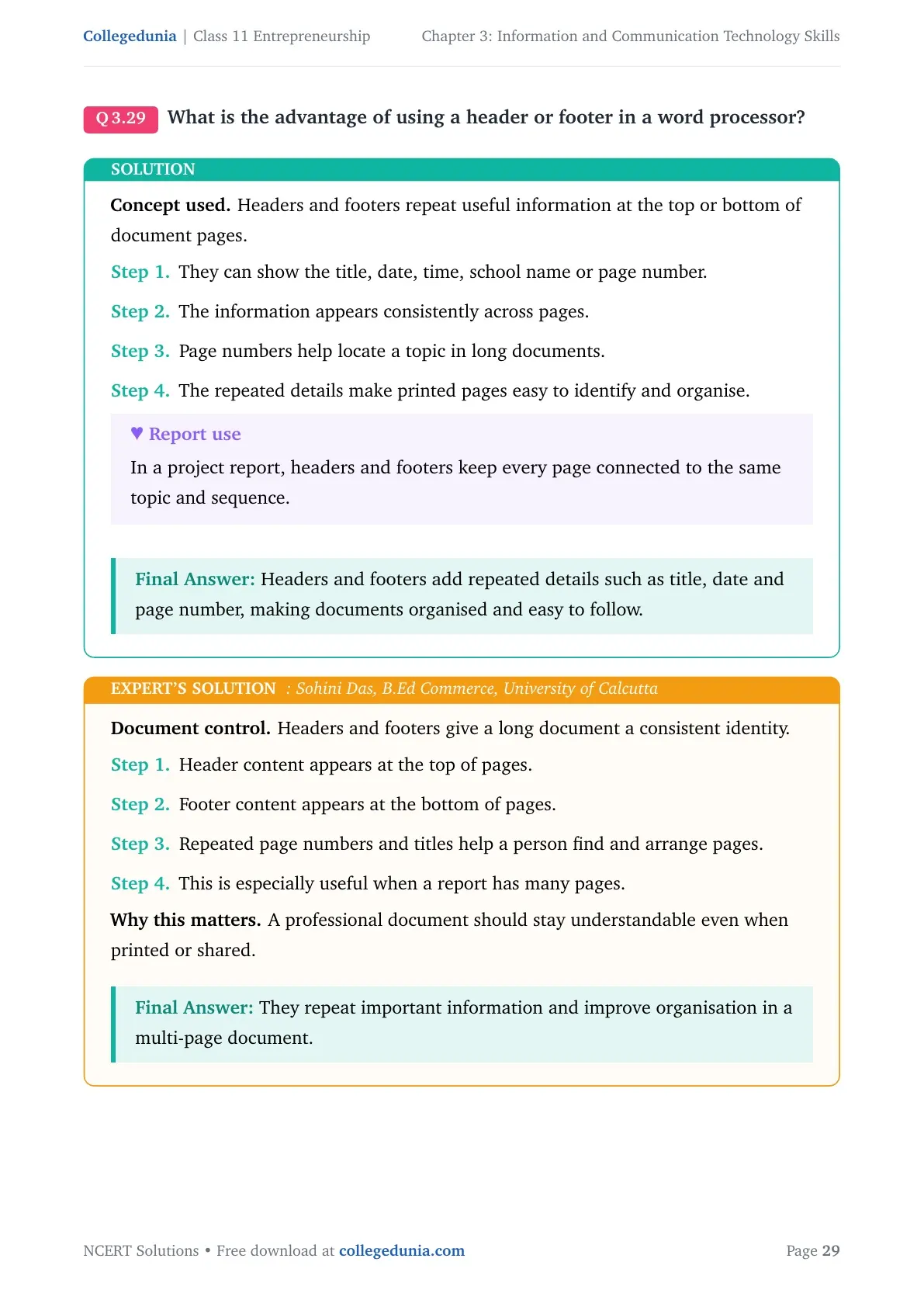
What is the advantage of using a header or footer in a word processor?
Concept used. Headers and footers repeat useful information at the top or bottom of document pages.
They can show the title, date, time, school name or page number.
The information appears consistently across pages.
Page numbers help locate a topic in long documents.
The repeated details make printed pages easy to identify and organise.
Report use
In a project report, headers and footers keep every page connected to the same topic and sequence.
Headers and footers add repeated details such as title, date and page number, making documents organised and easy to follow.
SD
Sohini Das
B.Ed Commerce, University of Calcutta
Verified Expert
Document control. Headers and footers give a long document a consistent identity.
Header content appears at the top of pages.
Footer content appears at the bottom of pages.
Repeated page numbers and titles help a person find and arrange pages.
This is especially useful when a report has many pages.
Why this matters. A professional document should stay understandable even when printed or shared.
They repeat important information and improve organisation in a multi-page document.
Session 8: Tracking Changes in a Document
Q 3.30
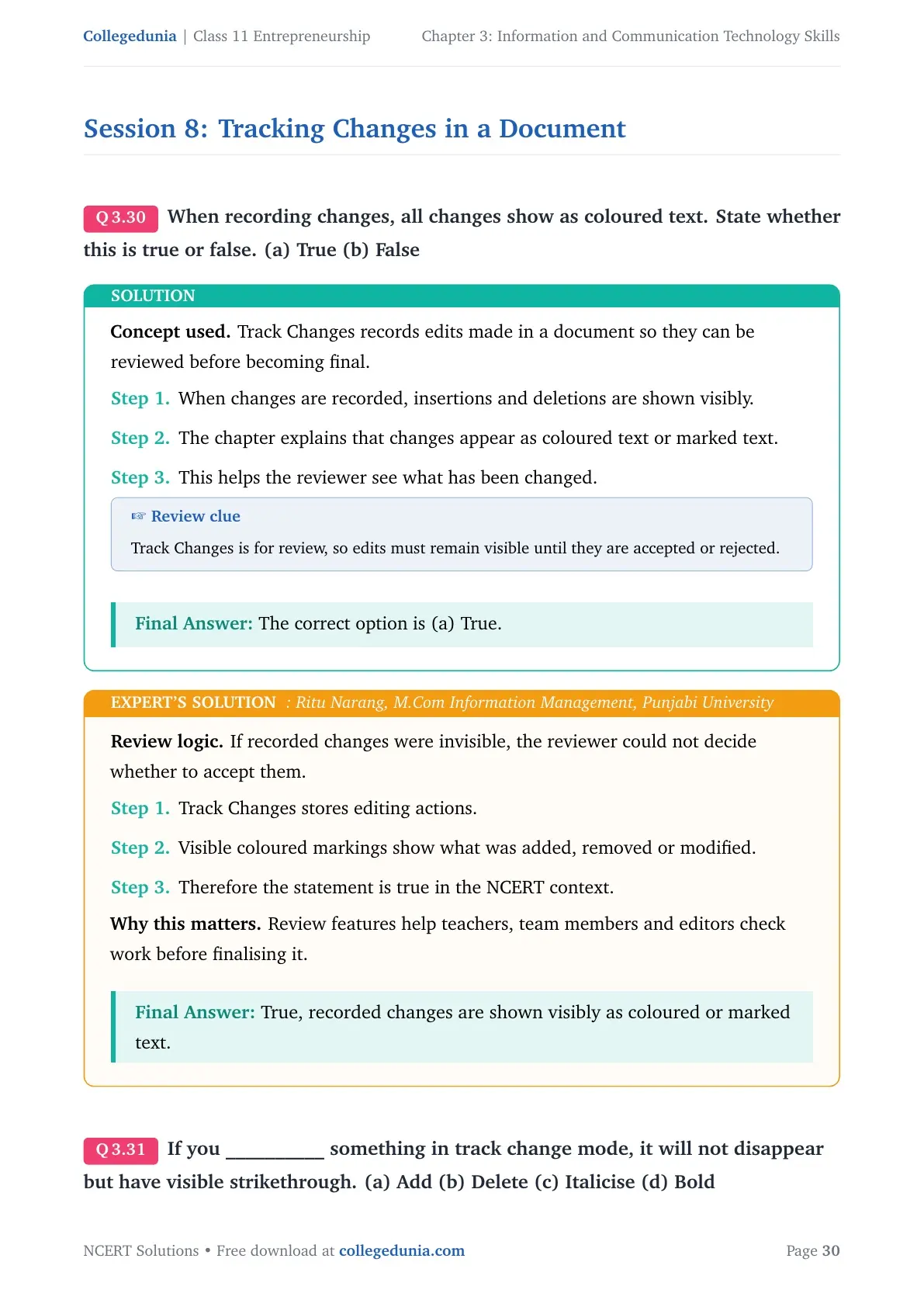
When recording changes, all changes show as coloured text. State whether this is true or false. (a) True (b) False
Concept used. Track Changes records edits made in a document so they can be reviewed before becoming final.
When changes are recorded, insertions and deletions are shown visibly.
The chapter explains that changes appear as coloured text or marked text.
This helps the reviewer see what has been changed.
Review clue
Track Changes is for review, so edits must remain visible until they are accepted or rejected.
The correct option is (a) True.
RN
Ritu Narang
M.Com Information Management, Punjabi University
Verified Expert
Review logic. If recorded changes were invisible, the reviewer could not decide whether to accept them.
Track Changes stores editing actions.
Visible coloured markings show what was added, removed or modified.
Therefore the statement is true in the NCERT context.
Why this matters. Review features help teachers, team members and editors check work before finalising it.
True, recorded changes are shown visibly as coloured or marked text.
Q 3.31
If you __________ something in track change mode, it will not disappear but have visible strikethrough. (a) Add (b) Delete (c) Italicise (d) Bold
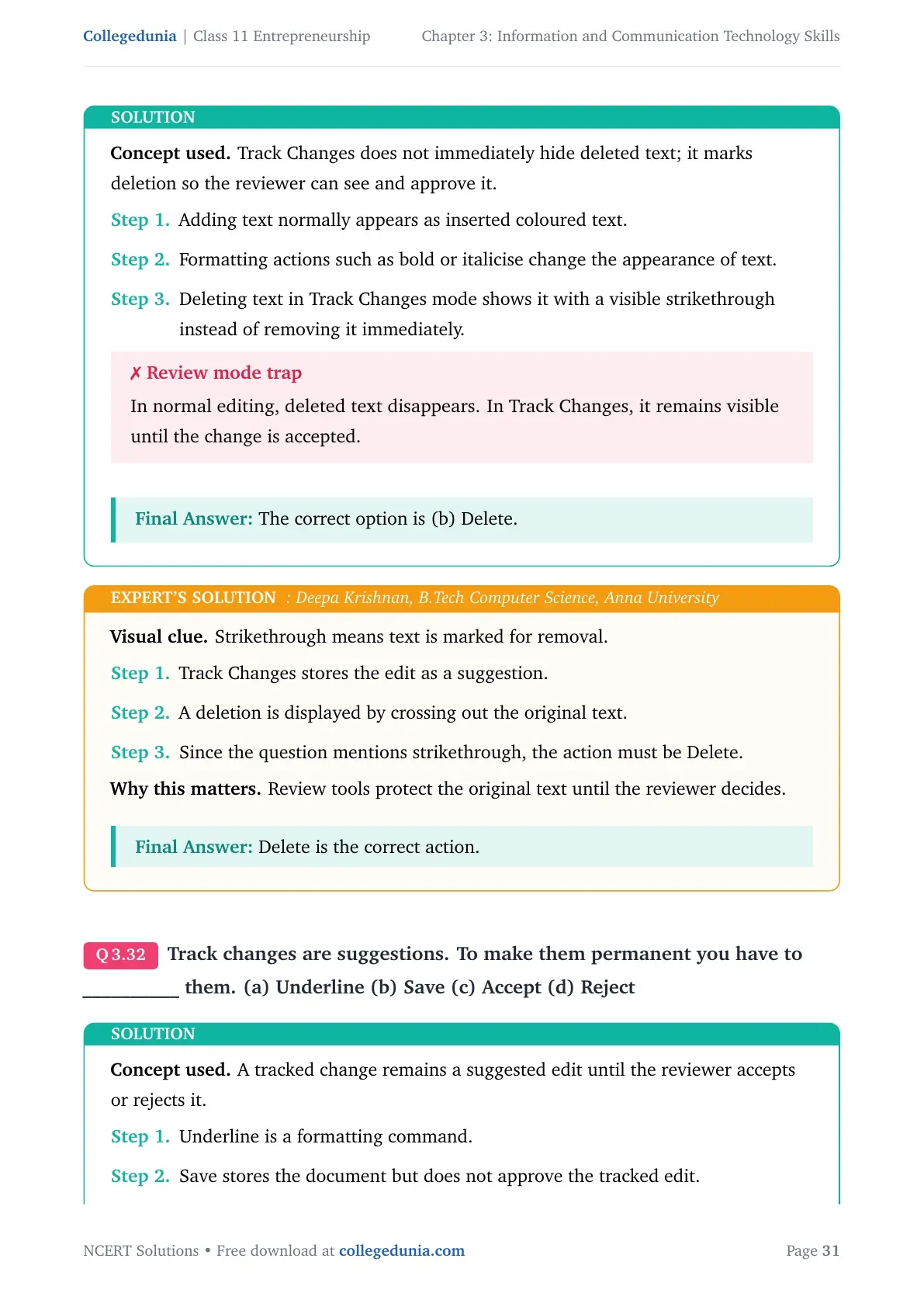
Concept used. Track Changes does not immediately hide deleted text; it marks deletion so the reviewer can see and approve it.
Adding text normally appears as inserted coloured text.
Formatting actions such as bold or italicise change the appearance of text.
Deleting text in Track Changes mode shows it with a visible strikethrough instead of removing it immediately.
Review mode trap
In normal editing, deleted text disappears. In Track Changes, it remains visible until the change is accepted.
The correct option is (b) Delete.
DK
Deepa Krishnan
B.Tech Computer Science, Anna University
Verified Expert
Visual clue. Strikethrough means text is marked for removal.
Track Changes stores the edit as a suggestion.
A deletion is displayed by crossing out the original text.
Since the question mentions strikethrough, the action must be Delete.
Why this matters. Review tools protect the original text until the reviewer decides.
Delete is the correct action.
Q 3.32
Track changes are suggestions. To make them permanent you have to __________ them. (a) Underline (b) Save (c) Accept (d) Reject
Concept used. A tracked change remains a suggested edit until the reviewer accepts or rejects it.
Underline is a formatting command.
Save stores the document but does not approve the tracked edit.
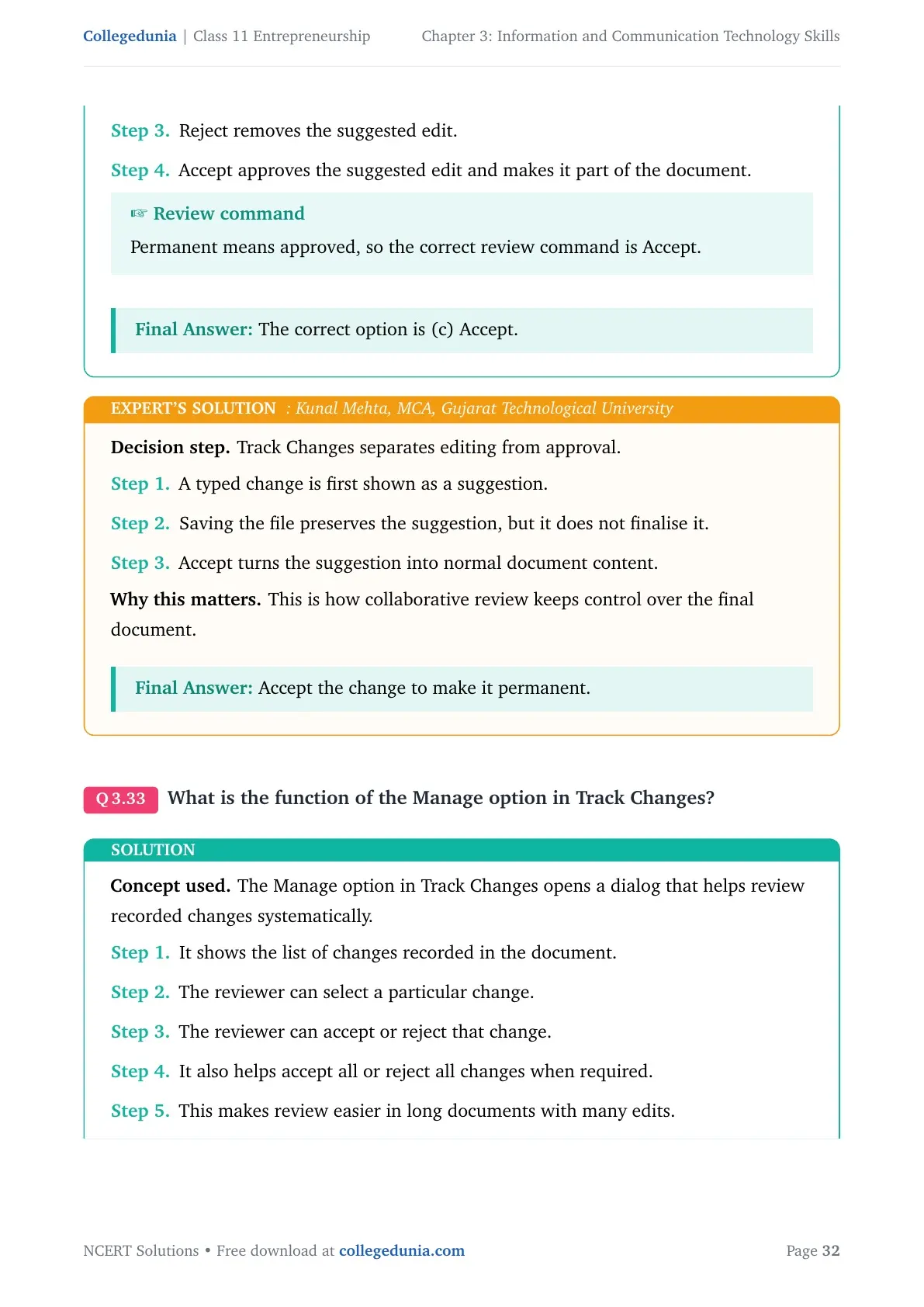
Reject removes the suggested edit.
Accept approves the suggested edit and makes it part of the document.
Review command
Permanent means approved, so the correct review command is Accept.
The correct option is (c) Accept.
KM
Kunal Mehta
MCA, Gujarat Technological University
Verified Expert
Decision step. Track Changes separates editing from approval.
A typed change is first shown as a suggestion.
Saving the file preserves the suggestion, but it does not finalise it.
Accept turns the suggestion into normal document content.
Why this matters. This is how collaborative review keeps control over the final document.
Accept the change to make it permanent.
Q 3.33
What is the function of the Manage option in Track Changes?
Concept used. The Manage option in Track Changes opens a dialog that helps review recorded changes systematically.
It shows the list of changes recorded in the document.
The reviewer can select a particular change.
The reviewer can accept or reject that change.
It also helps accept all or reject all changes when required.
This makes review easier in long documents with many edits.
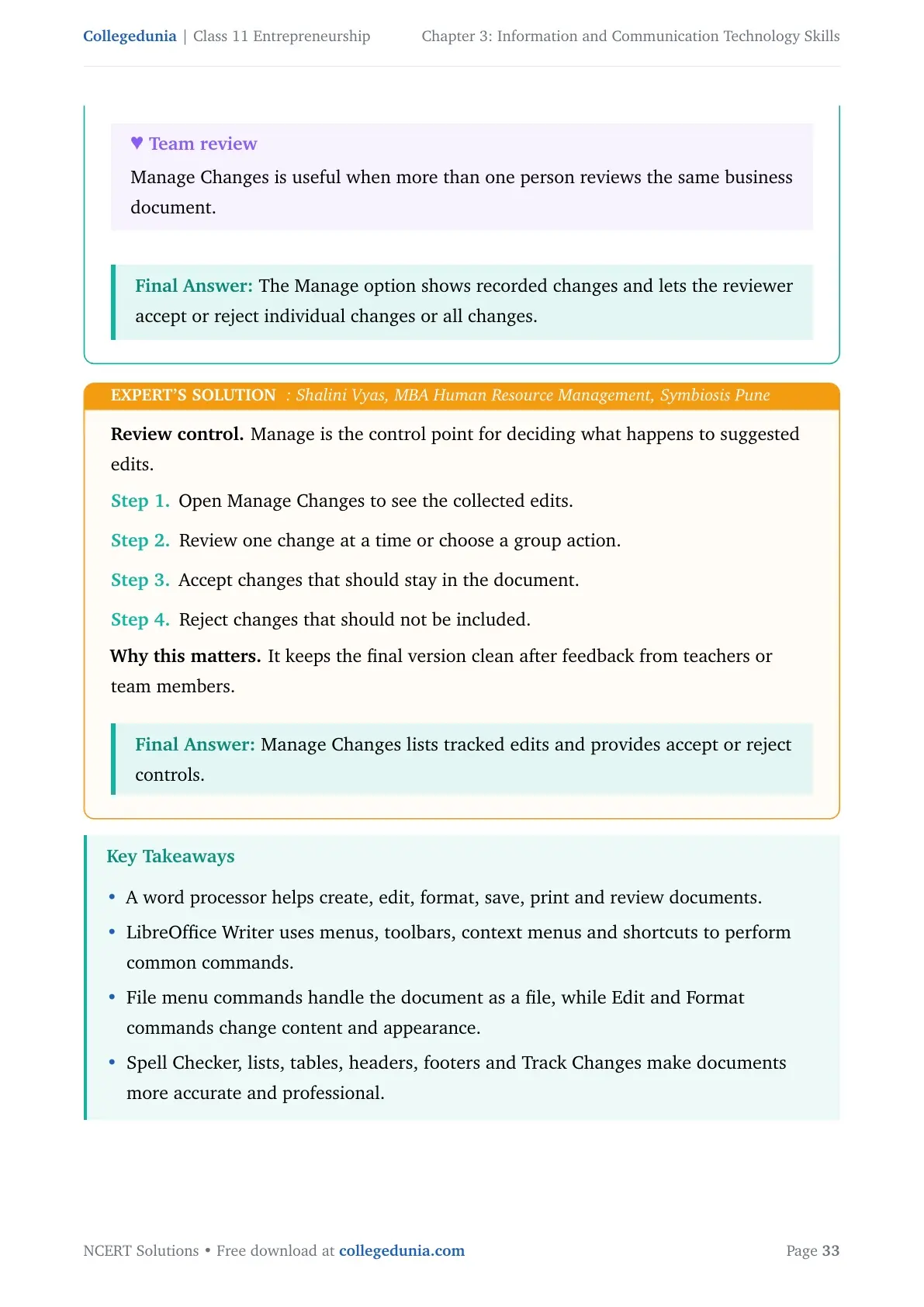
Team review
Manage Changes is useful when more than one person reviews the same business document.
The Manage option shows recorded changes and lets the reviewer accept or reject individual changes or all changes.
SV
Shalini Vyas
MBA Human Resource Management, Symbiosis Pune
Verified Expert
Review control. Manage is the control point for deciding what happens to suggested edits.
Open Manage Changes to see the collected edits.
Review one change at a time or choose a group action.
Accept changes that should stay in the document.
Reject changes that should not be included.
Why this matters. It keeps the final version clean after feedback from teachers or team members.
Manage Changes lists tracked edits and provides accept or reject controls.
Frequently Asked Questions
Ques. How many questions are solved in Class 11 Entrepreneurship Chapter 3 NCERT Solutions?
Ans. This article solves all 33 Check Your Progress questions from Information and Communication Technology Skills, with direct solutions and expert explanations.
Ques. What topics are covered in Information and Communication Technology Skills?
Ans. The chapter covers word processors, LibreOffice Writer interface, saving and printing, text formatting, Spell Checker, lists, tables, headers, footers and Track Changes.
Ques. Is the Chapter 3 solutions PDF based on the 2026-27 syllabus?
Ans. Yes. The PDF and article are prepared for the Class 11 Entrepreneurship 2026-27 syllabus and use the NCERT Unit 3 source chapter.
Ques. Which shortcut keys are most important in Chapter 3?
Ans. Important shortcuts include Ctrl+n for a new document, Ctrl+S for saving, F7 for Spell Checker, Ctrl+F12 for inserting a table and F12 for a numbered list.







Comments