



The NCERT Class 11 Informatics Practices Chapter 1 Computer System book PDF brings together the block diagram, the memory unit table, the RAM against ROM comparison and the software categories that the CBSE paper actually tests. It is the official 14 page chapter file from the 2026-27 reprint, and it opens the very first unit of the subject.
- Computer System is Chapter 1 of the NCERT Informatics Practices textbook for Class 11.
- The chapter covers four heads: computer system, evolution of computer, computer memory and software.
- It ends with a seven point Summary and 11 exercise questions.
Every page of this Computer System chapter file is the official NCERT 2026-27 reprint, checked against the printed Informatics Practices textbook for Class 11 and paired on Collegedunia with solved answers, notes and handwritten revision pages for the same chapter.
What the Computer System Class 11 Chapter PDF Contains, Page by Page
The chapter runs from page 1 to page 14 of the textbook. NCERT builds it in a fixed order: hardware first, then history, then memory, then software. Reading it in that printed order is the fastest way to make sense of the unit.
| Section | What is printed there | Why it matters in the exam |
|---|---|---|
| 1.1 Introduction to Computer System | Definition of a computer, the block diagram in Figure 1.1, the CPU, input devices and output devices | The block diagram is a direct 4 mark question |
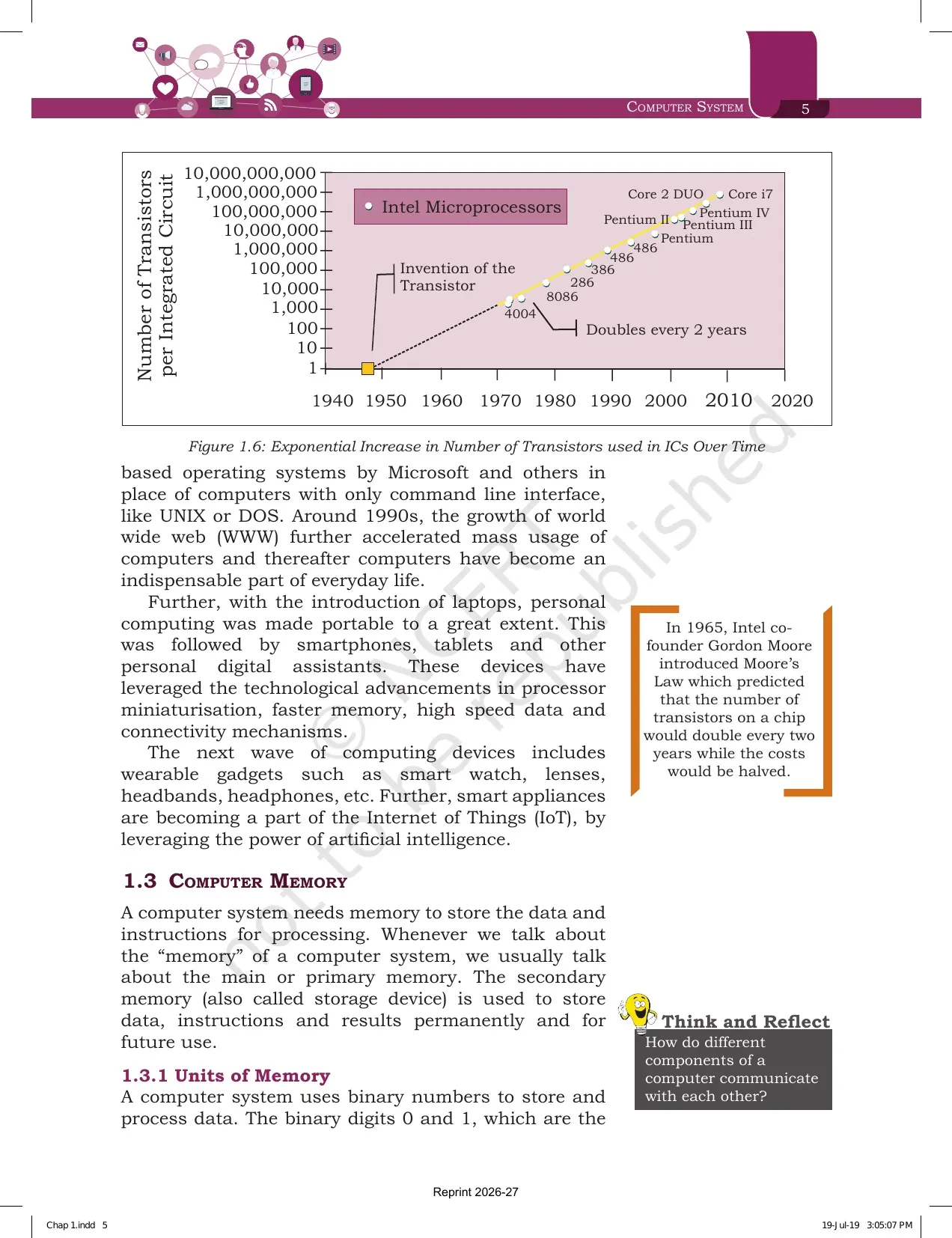
| 1.2 Evolution of Computer | Von Neumann architecture, the Figure 1.5 timeline from Abacus to Integrated Circuit, Moore's Law | Feeds one mark objective questions on inventors and years |
| 1.3 Computer Memory | Units of memory in Table 1.1, primary and secondary memory, cache, data capturing and recovery | Conversion sums and the RAM against ROM difference |
| 1.4 Software | Need of software, system software, application software, FOSS against proprietary | Classification questions and two mark examples |
| Summary, page 13 | Seven bullet points that compress the whole chapter | The best single page for last minute revision |
| Exercise, pages 13 and 14 | 11 questions, including a block diagram question and byte conversions | School tests repeat these almost word for word |
Tip: the six Activity boxes and the three Think and Reflect boxes in the margins are not exam questions, but they are the source of most viva and project work in Class 11.
Block Diagram of a Computer System and What Each Component Does
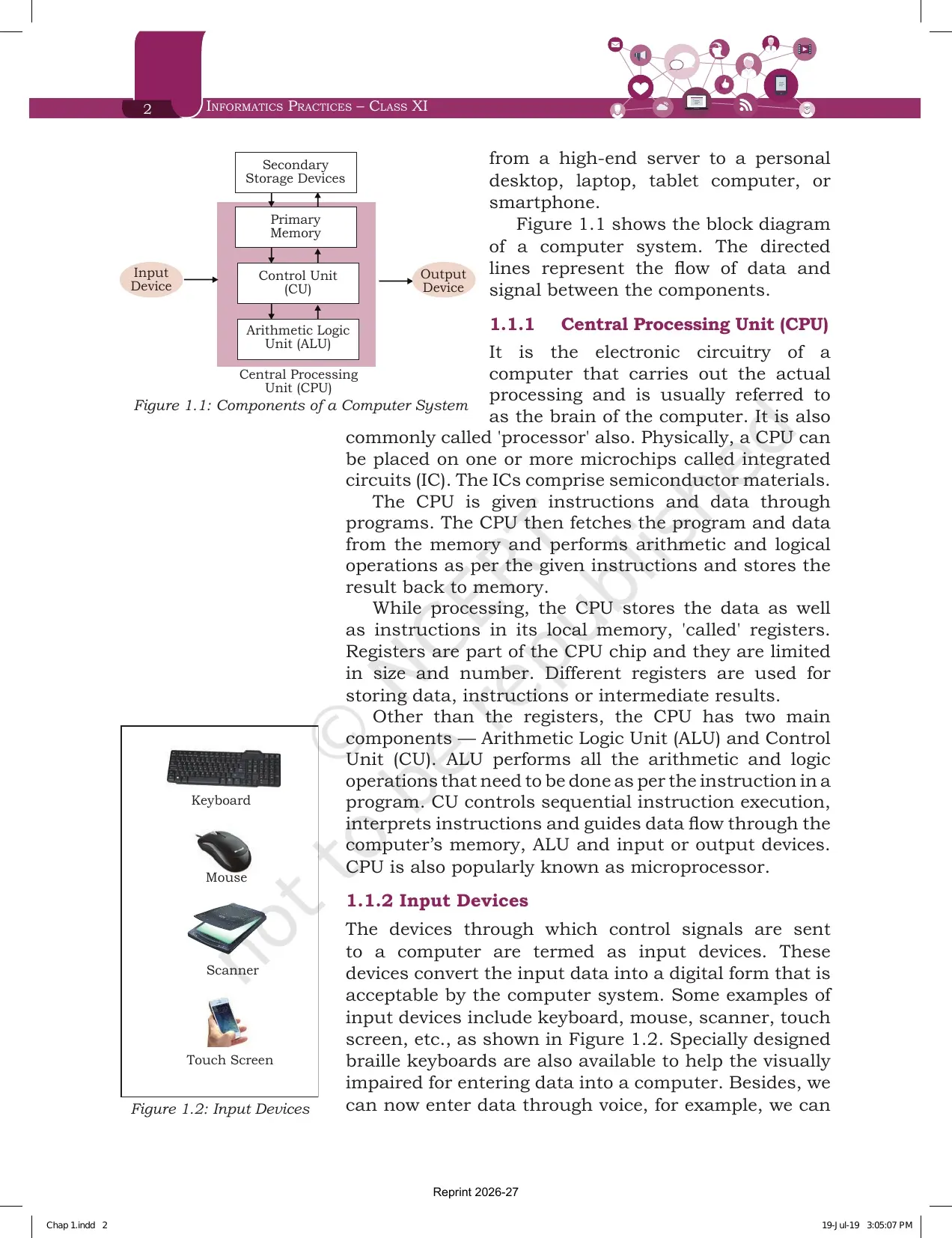
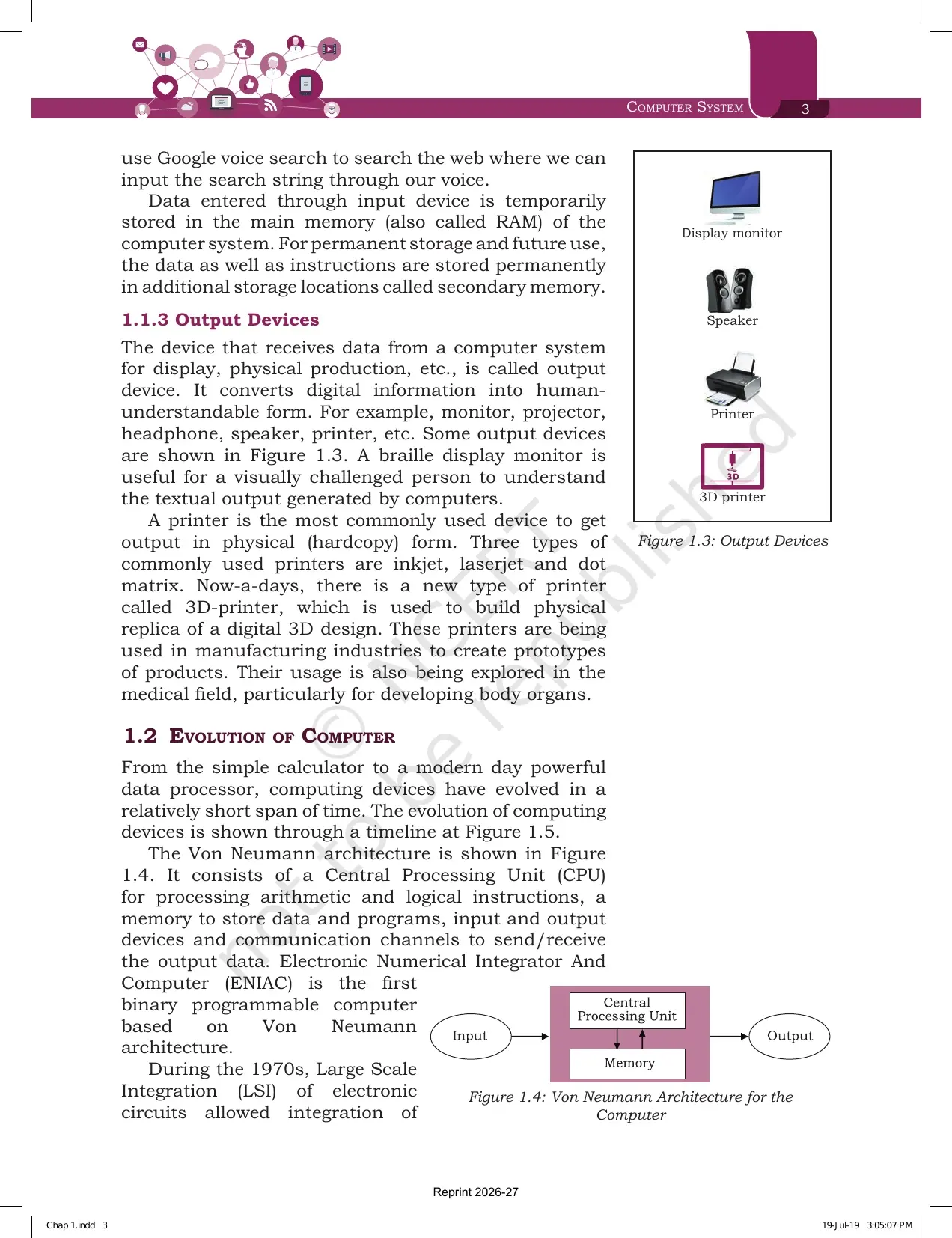
Figure 1.1 on page 2 is the single most reused figure of the chapter. It shows five blocks joined by directed lines, and those lines carry the flow of data and signals. NCERT defines a computer as an electronic device that can be programmed to accept data, process it and generate a result.
| Block | What NCERT says it does | Examples given in the chapter |
|---|---|---|
| Input device | Sends control signals to the computer and converts input data into digital form | Keyboard, mouse, scanner, touch screen, braille keyboard, voice input |
| Central Processing Unit | Carries out the actual processing, called the brain of the computer | Built on integrated circuits made of semiconductor material |
| Arithmetic Logic Unit | Performs all arithmetic and logic operations named in the instruction | Part of the CPU, shown inside the CPU box |
| Control Unit | Controls sequential execution, interprets instructions and guides data flow | Part of the CPU, shown inside the CPU box |
| Primary memory | Holds program and data during processing, read and written by the CPU directly | RAM and ROM |
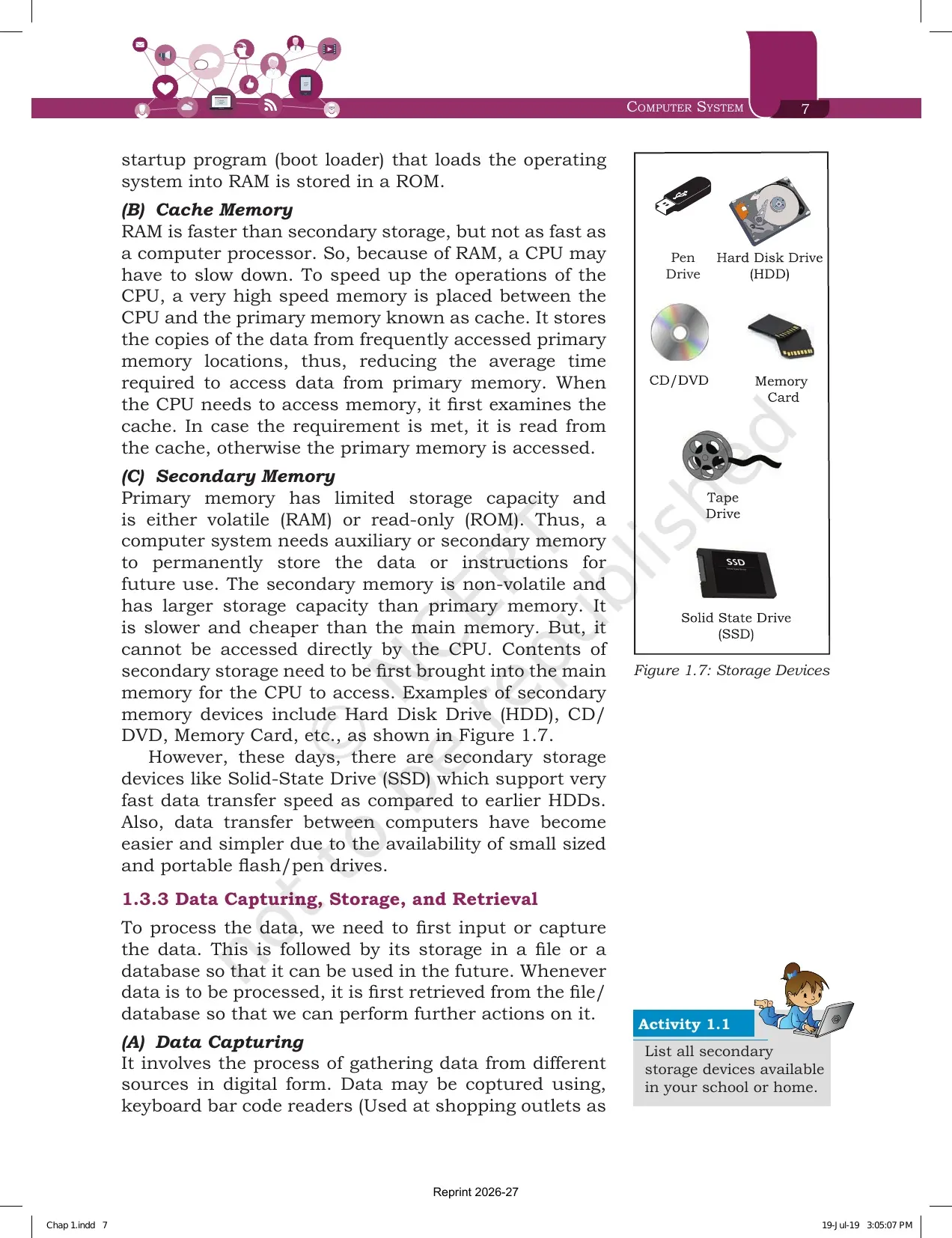
| Secondary storage device | Stores data, instructions and results permanently for future use | Hard Disk Drive, CD or DVD, memory card, SSD, pen drive |
| Output device | Receives data from the computer and converts digital information into human readable form | Monitor, projector, headphone, speaker, printer, 3D printer |
The CPU also has its own local memory called registers. Registers sit on the CPU chip itself, are limited in size and number, and hold data, instructions or intermediate results. Many students miss registers when they label the diagram, and the marker looks for them.
- The CPU is also called the processor or the microprocessor.
- Three common printer types named in the chapter are inkjet, laserjet and dot matrix.
- A 3D printer builds a physical replica of a digital 3D design and is being tried in medicine for body organs.
- A braille display monitor helps a visually challenged person read textual output.
Computer System Chapter 1 Explained in One Shot
Source: Magnet Brains on YouTube
Evolution of Computer from the Abacus to Super Large Scale Integration
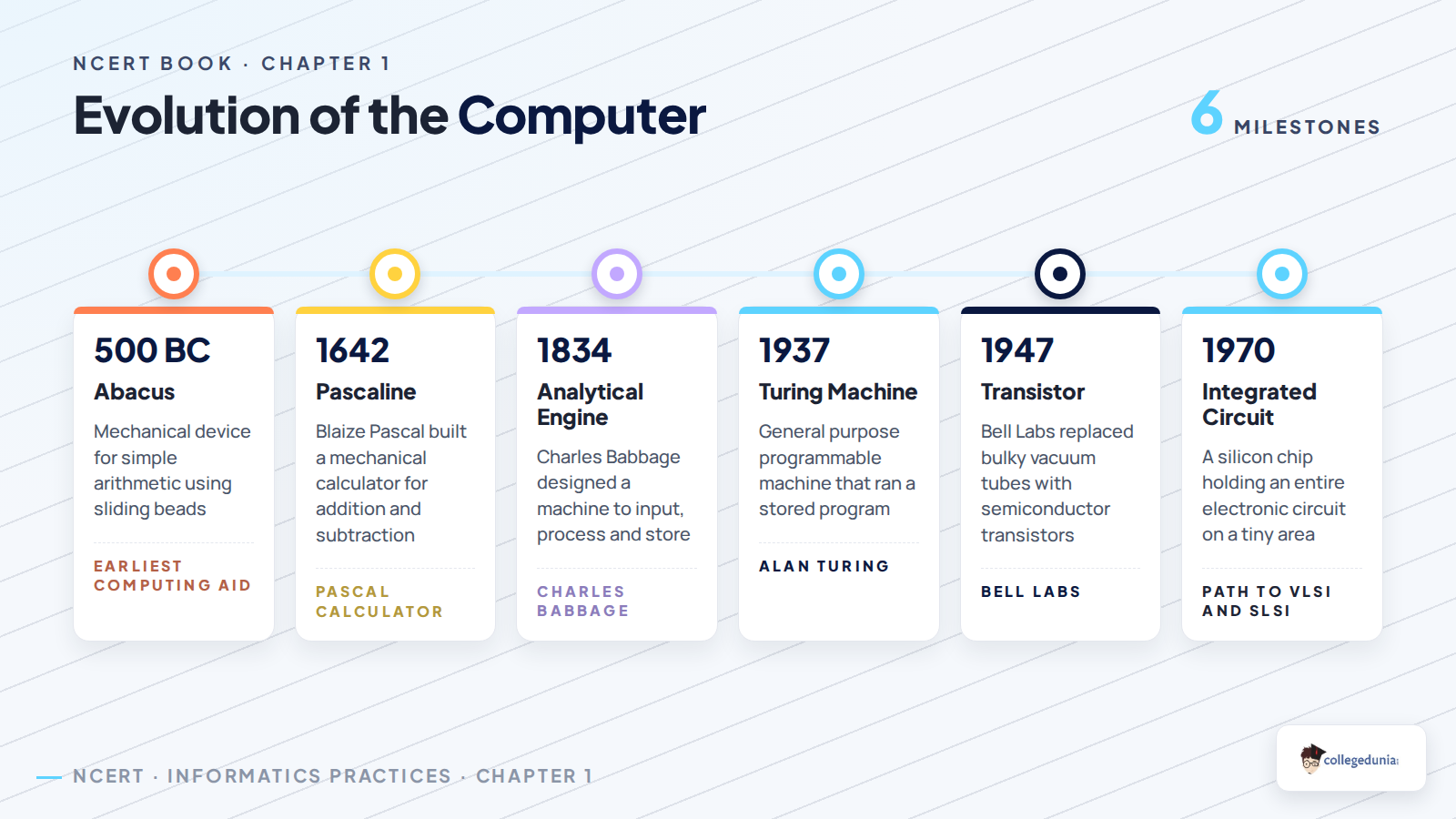
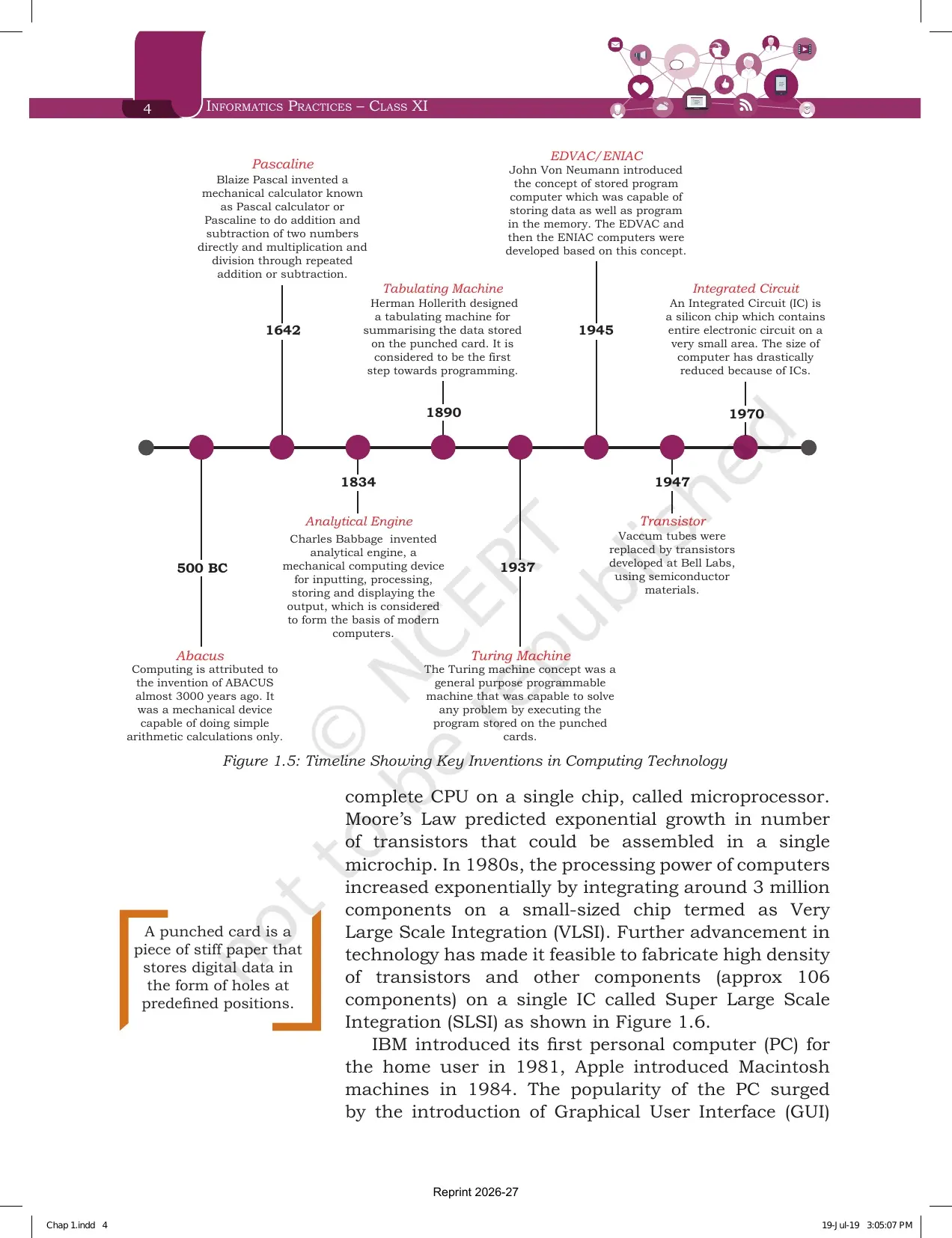
Section 1.2 tells the story through the Figure 1.5 timeline. Each entry carries a name, a year and one line about what changed. This is the easiest marks block in the chapter because the answers are single facts.
| Year | Invention | Who and what it did |
|---|---|---|
| 500 BC | Abacus | A mechanical device for simple arithmetic, credited with starting computing about 3000 years ago |
| 1642 | Pascaline | Blaize Pascal built a mechanical calculator for addition and subtraction, with repeated steps for multiplication and division |
| 1834 | Analytical Engine | Charles Babbage designed a machine for input, processing, storage and output, treated as the basis of modern computers |
| 1890 | Tabulating Machine | Herman Hollerith summarised data stored on punched cards, the first step towards programming |
| 1937 | Turing Machine | A general purpose programmable machine that could solve any problem from a program on punched cards |
| 1945 | EDVAC and ENIAC | John Von Neumann introduced the stored program concept, storing data and program together in memory |
| 1947 | Transistor | Vacuum tubes were replaced by transistors developed at Bell Labs using semiconductor materials |
| 1970 | Integrated Circuit | A silicon chip holding a full electronic circuit, which cut computer size sharply |
After the timeline the chapter moves into scale. Large Scale Integration in the 1970s put a complete CPU on one chip, the microprocessor. In the 1980s Very Large Scale Integration packed around three million components on a small chip. Super Large Scale Integration pushed that to roughly 10 to the power 6 components on a single integrated circuit.
- Moore's Law, given by Intel co-founder Gordon Moore in 1965, predicted that transistors on a chip would double every two years while costs halved.
- ENIAC is named as the first binary programmable computer based on Von Neumann architecture.
- IBM launched its first home personal computer in 1981; Apple introduced Macintosh in 1984.
- Graphical User Interface operating systems replaced command line systems such as UNIX and DOS, and the World Wide Web in the 1990s pushed mass usage.
- The next wave named in the chapter is wearables such as smart watches, lenses, headbands and headphones, plus smart appliances joining the Internet of Things.
Units of Computer Memory from Bit and Nibble to Yottabyte
Section 1.3.1 is the part that turns into numerical questions. A computer stores and processes data in binary, so the binary digits 0 and 1 are the basic units and are called bits. Bits are grouped into words.
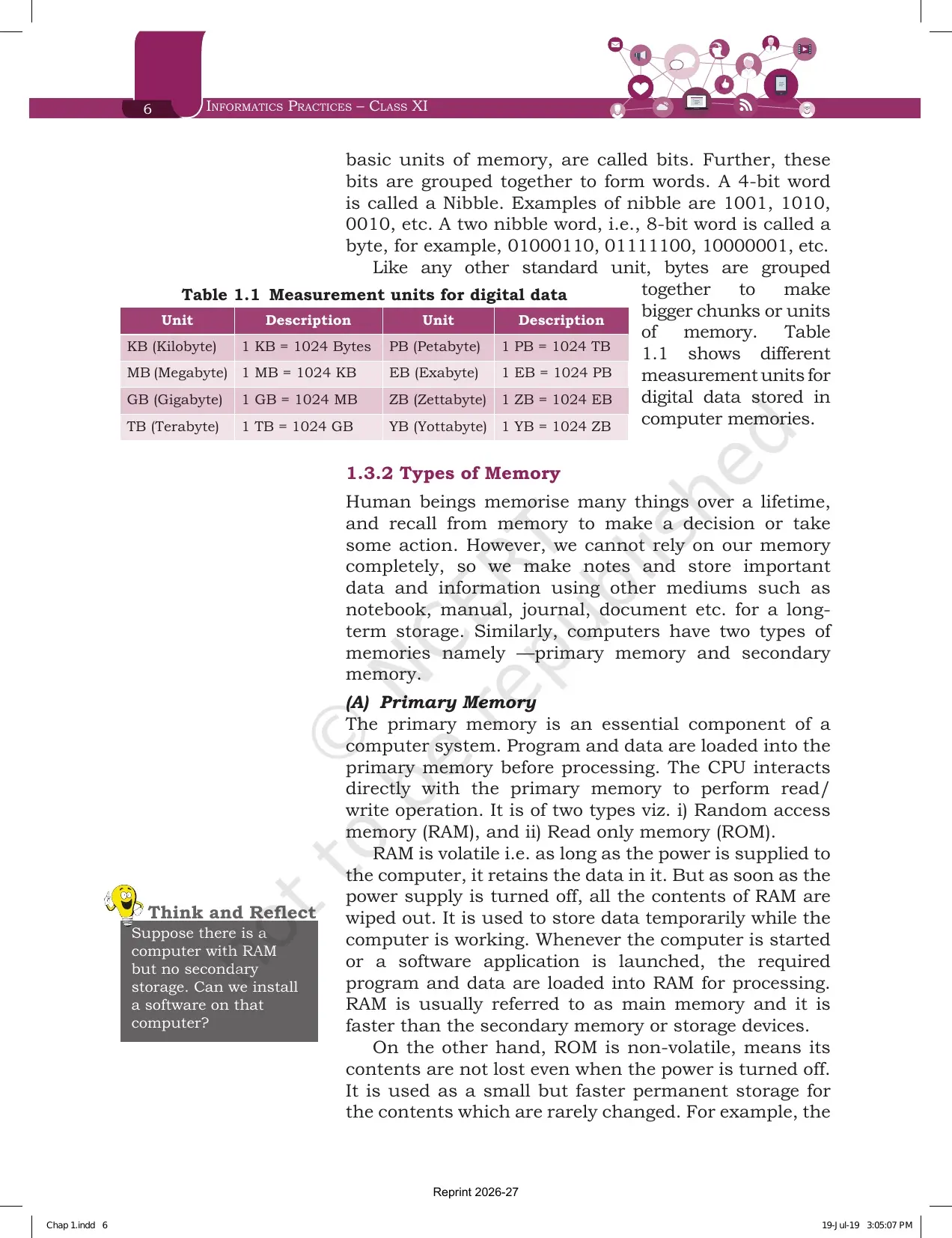
- A 4 bit word is a nibble, for example 1001, 1010 or 0010.
- A two nibble, 8 bit word is a byte, for example 01000110 or 10000001.
- Every step up in the table multiplies by 1024, not by 1000.
| Unit | Value | Unit | Value |
|---|---|---|---|
| KB (Kilobyte) | 1 KB = 1024 Bytes | PB (Petabyte) | 1 PB = 1024 TB |
| MB (Megabyte) | 1 MB = 1024 KB | EB (Exabyte) | 1 EB = 1024 PB |
| GB (Gigabyte) | 1 GB = 1024 MB | ZB (Zettabyte) | 1 ZB = 1024 EB |
| TB (Terabyte) | 1 TB = 1024 GB | YB (Yottabyte) | 1 YB = 1024 ZB |
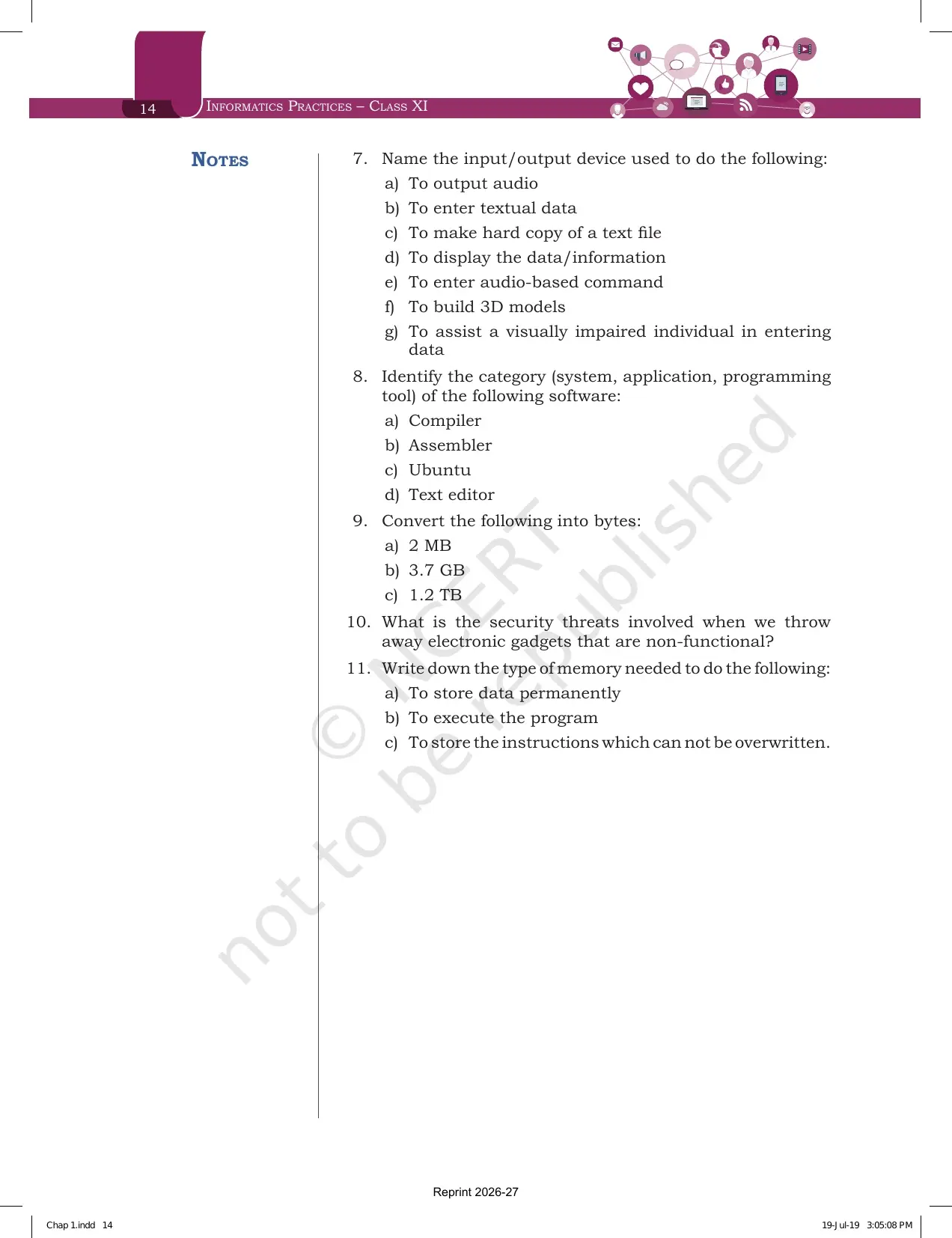
Question 9 of the exercise asks you to convert 2 MB, 3.7 GB and 1.2 TB into bytes. Work in powers of 1024 and show the chain. For example, 2 MB equals 2 into 1024 into 1024 bytes, which is 2097152 bytes. Writing the chain earns the method mark even if the final arithmetic slips.
Types of Computer Memory: RAM, ROM, Cache and Secondary Storage
NCERT starts this section with a simple comparison. People remember some things and write the rest down in notebooks. Computers do the same, splitting memory into primary and secondary.
| Memory | Volatile or not | Key point from the chapter |
|---|---|---|
| RAM | Volatile | Main memory. Holds data and programs while the computer works. Contents are wiped when power goes off |
| ROM | Non volatile | Small but fast permanent storage for content that rarely changes, such as the boot loader |
| Cache | Volatile | Very high speed memory placed between the CPU and primary memory. The CPU checks cache first |
| Secondary memory | Non volatile | Larger, slower and cheaper than main memory. Cannot be accessed directly by the CPU |
Two lines from this section carry most of the marks. First, the CPU cannot reach secondary storage directly. Contents must be brought into main memory first. Second, cache exists because RAM is faster than a hard disk but still slower than the processor, so the CPU would otherwise sit and wait.
The chapter also notes newer hardware. Solid State Drives transfer data much faster than older Hard Disk Drives, and small portable flash or pen drives have made file transfer between computers simple.
Data Capturing, Storage, Retrieval and the Risk of Deleted Data Coming Back
Section 1.3.3 and 1.3.4 are the parts students skim and then lose marks on. They are written in plain language and are easy to answer if you have read them once.
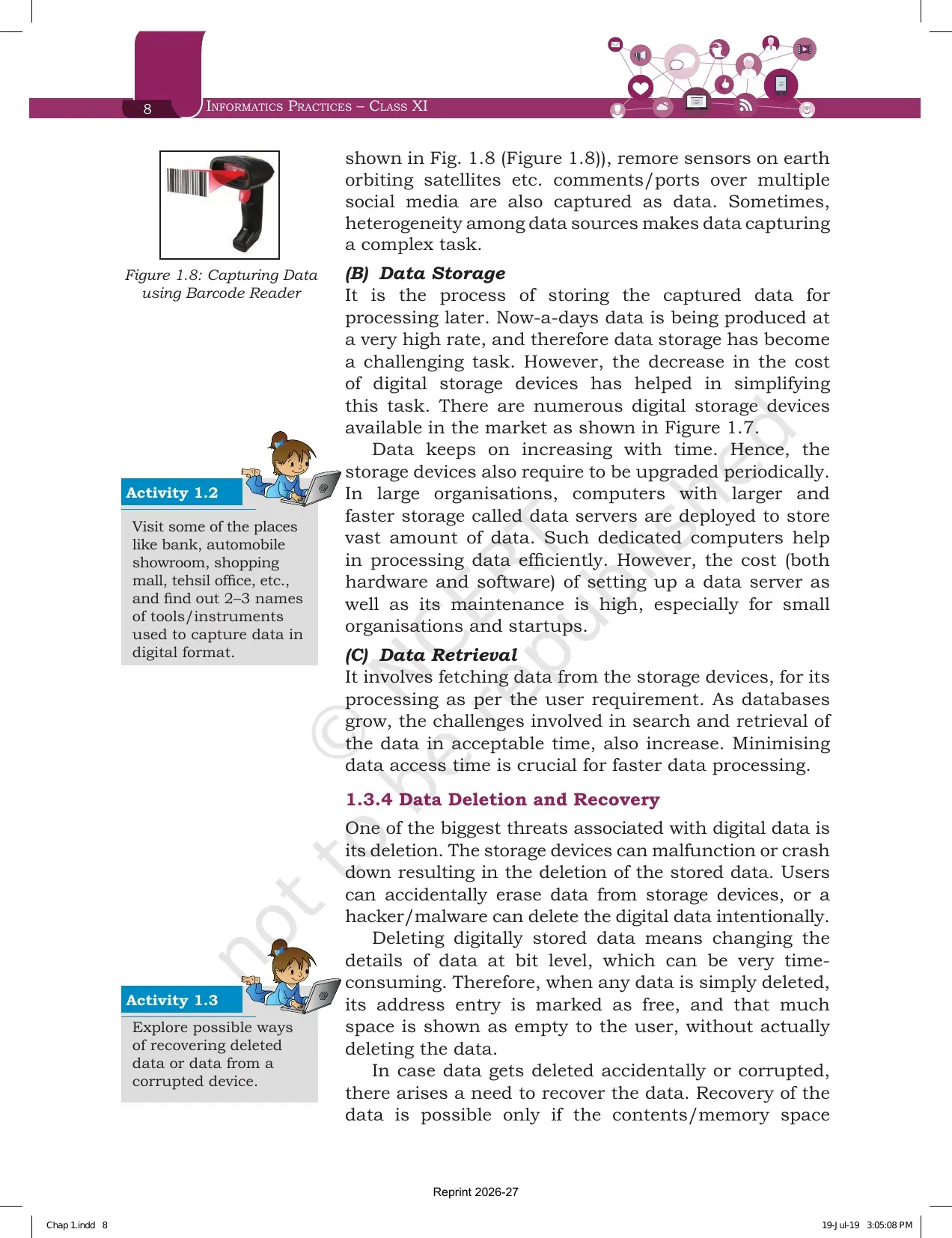
- Data capturing gathers data in digital form from keyboards, bar code scanners at shopping outlets, remote sensors on earth orbiting satellites, and posts on social media. Mixed sources make this complex.
- Data storage keeps the captured data for later processing. Falling storage costs have helped, but large organisations still need dedicated data servers, which are expensive to set up and maintain.
- Data retrieval fetches data back for processing. As databases grow, keeping access time low becomes the main challenge.
Deleting a file does not erase it. NCERT explains that changing data at bit level is slow, so the system only marks the address entry as free and shows the space as empty. That is why data recovery works, and it is also why discarded storage devices are a threat.
- Recovery is possible only while the space marked as deleted has not been overwritten by new data.
- Unauthorised deletion is controlled by limiting access, using passwords on accounts and files, and encrypting files.
- Unwanted recovery from an old or broken device is controlled by shredding the data properly before disposal.
Software in the Computer System Chapter: System, Programming Tools and Application
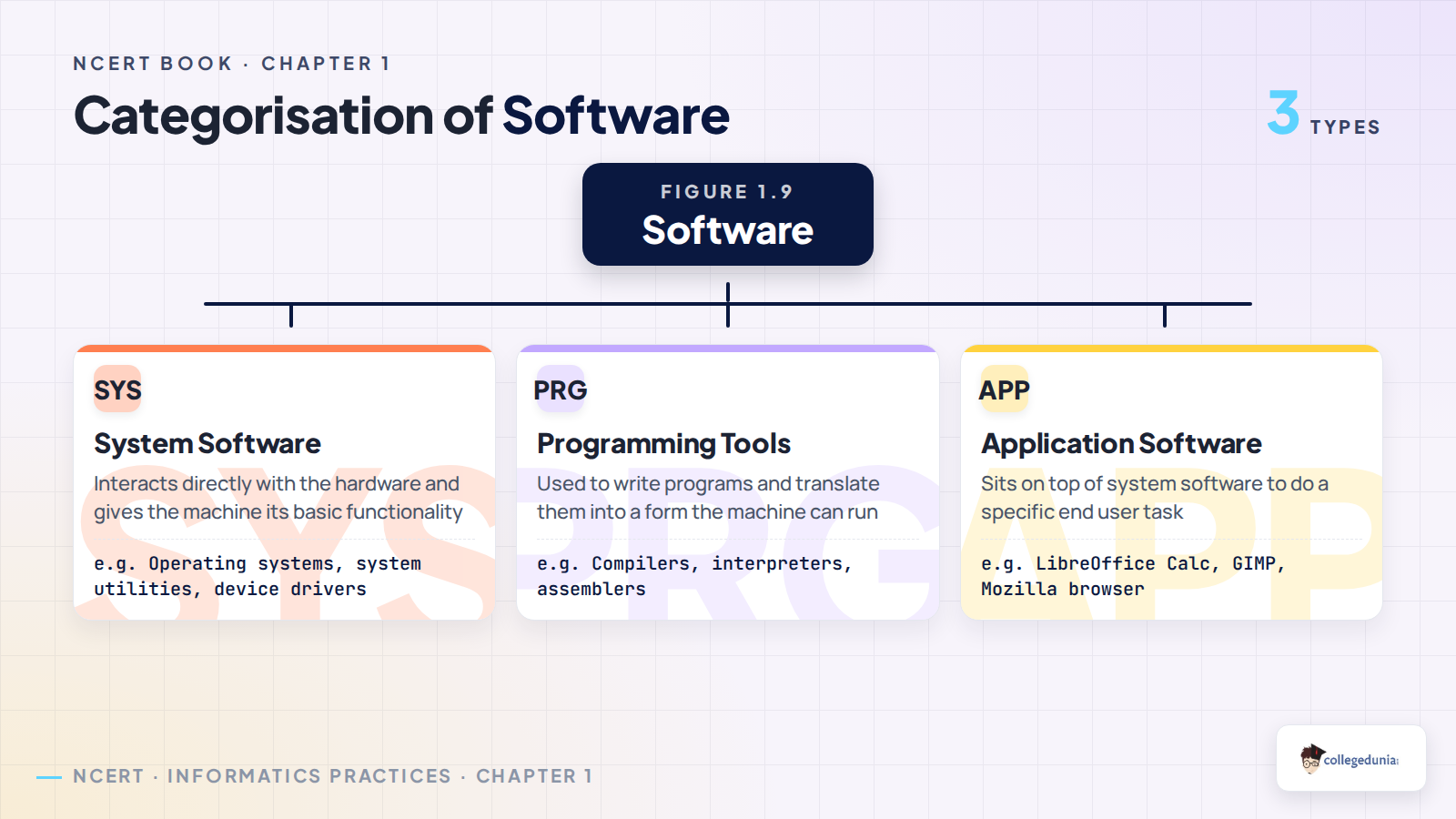
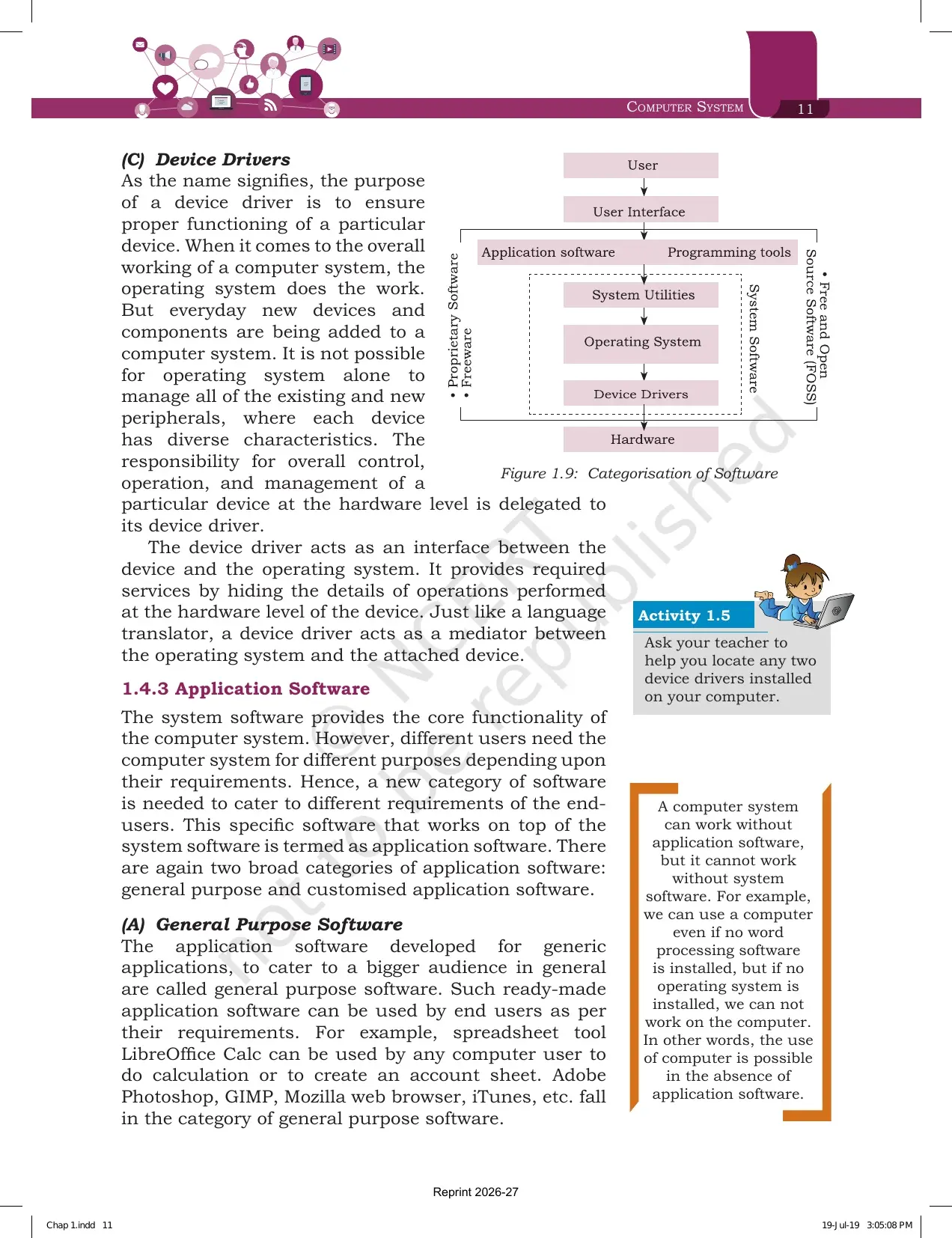
Section 1.4 opens with a blunt line: hardware is of no use on its own. Software is the set of instructions that makes hardware work, and it acts as the interface between the user and the machine. Figure 1.9 splits software into three categories.
| Category | What it does | Examples from the chapter |
|---|---|---|
| System software | Gives basic functionality by working directly with the hardware | Operating systems, system utilities, device drivers |
| Operating system | The most basic system software, without which other software cannot run | Windows, Linux, Macintosh, Ubuntu, Fedora, Android, iOS |
| System utilities | Maintain and configure the system, some shipped with the operating system and some added later | Disk defragmentation tool, formatting utility, system restore, anti virus, disk cleaner |
| Device drivers | Control one particular device at hardware level and sit between the device and the operating system | Compared in the chapter to a language translator |
| Programming tools | The third category shown in the software chart | Compiler, assembler, text editor from exercise question 8 |
| General purpose application software | Ready made software written for a wide set of users | LibreOffice Calc, Adobe Photoshop, GIMP, Mozilla browser, iTunes |
| Customised application software | Tailor made for one organisation or person | Websites, school management software, accounting software |
The margin box on page 11 carries a line worth memorising. A computer can work without application software, but it cannot work without system software. You can use a machine with no word processor installed, but with no operating system you cannot use it at all.
Free and Open Source, Freeware and Proprietary Software with Examples
Section 1.4.4 is short and is asked almost every year as a difference question. The three terms are decided by what the developer allows, not by what the software does.
| Type | Source code | Cost to use | Examples |
|---|---|---|---|
| Free and Open Source Software | Available to the public, anyone with the knowledge can improve it | Free | Ubuntu, Python, LibreOffice, OpenOffice, Mozilla Firefox |
| Freeware | Not available | Free | Skype, Adobe Reader |
| Proprietary software | Not available, copyright held by the vendor | Must be purchased | Microsoft Windows, Tally, Quickheal |
Exercise question 5 asks for the difference between proprietary and freeware software with two examples of each. The dividing line is the source code, not the price. Freeware costs nothing but hides its code, so it is not open source.
Exercise Questions Printed at the End of the Computer System Chapter
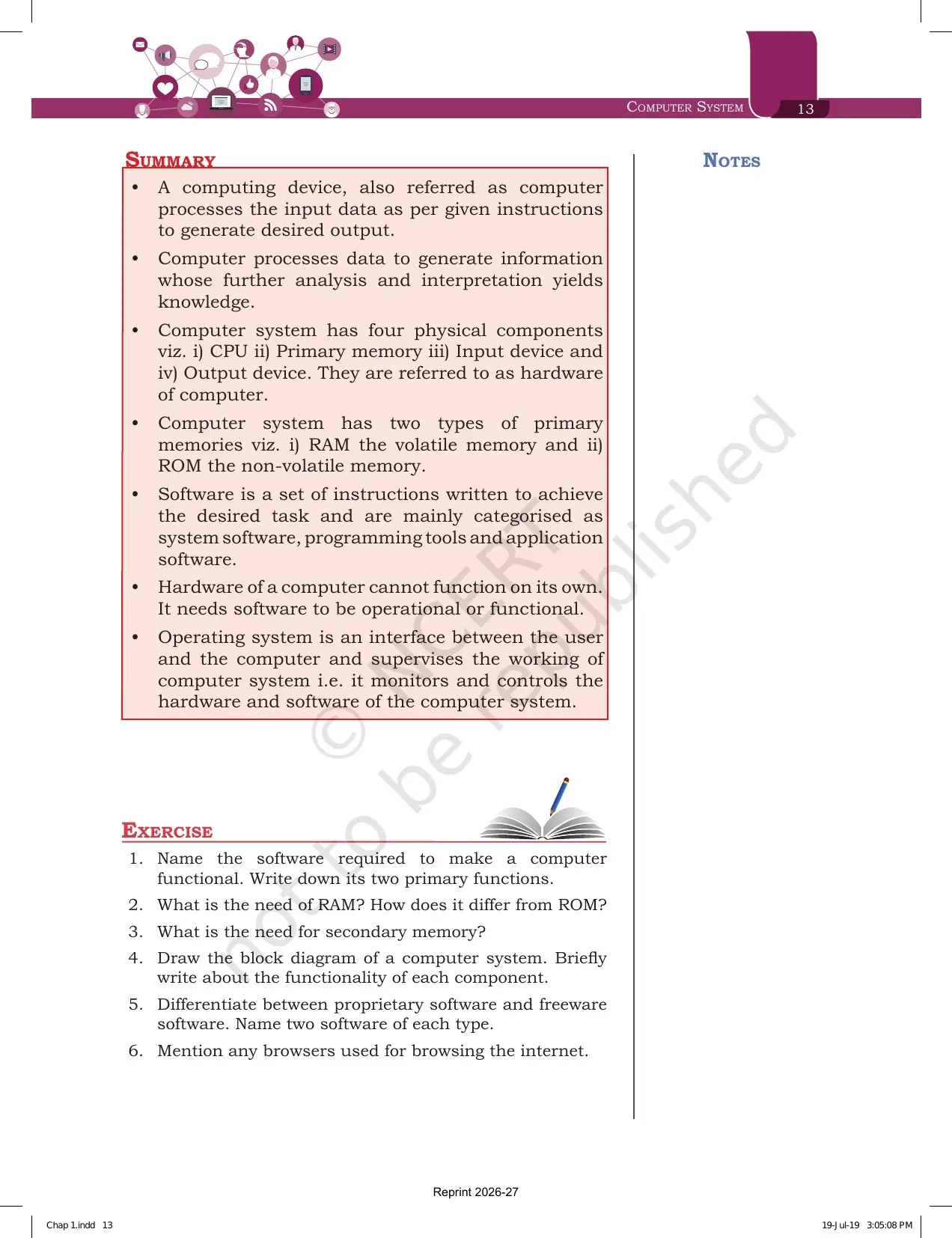
The chapter closes with 11 questions across pages 13 and 14. They are spread evenly over the four sections, so they double as a checklist for whether you have read the whole chapter.
| Question | What it asks | Which section answers it |
|---|---|---|
| 1 | Software needed to make a computer functional and its two primary functions | 1.4.2, operating system |
| 2 | Need of RAM and how it differs from ROM | 1.3.2 (A) |
| 3 | Need for secondary memory | 1.3.2 (C) |
| 4 | Draw the block diagram and write the function of each component | Figure 1.1 and section 1.1 |
| 5 | Proprietary against freeware software with two examples of each | 1.4.4 |
| 6 | Name browsers used for browsing the internet | 1.4.3 (A) |
| 7 | Input or output device for seven listed tasks | 1.1.2 and 1.1.3 |
| 8 | Category of compiler, assembler, Ubuntu and text editor | Figure 1.9 |
| 9 | Convert 2 MB, 3.7 GB and 1.2 TB into bytes | Table 1.1 |
| 10 | Security threat when non functional gadgets are thrown away | 1.3.4 |
| 11 | Memory type for permanent storage, program execution and non overwritable instructions | 1.3.2 |
Question 7 is the one worth practising in writing. The seven parts map to speaker, keyboard, printer, monitor, microphone, 3D printer and braille keyboard, and each part is a separate mark.
Computer System Weightage in the Class 11 Informatics Practices Paper
The Class 11 Informatics Practices theory paper carries 70 marks with 30 marks of practical work. Computer System sits in the first unit, which is the smallest theory unit but the easiest to score in because the answers are definitions and lists.
| Unit | Approximate theory marks | Where Computer System appears |
|---|---|---|
| Unit 1, Introduction to Computer System | Around 10 | Block diagram, memory types, unit conversion, software classification |
| Unit 2, Introduction to Python | Around 25 | Not applicable |
| Unit 3, Database concepts and SQL | Around 30 | Not applicable |
| Unit 4, Introduction to Emerging Trends | Around 5 | Not applicable |
- Most common shape: a one mark objective item on a memory unit, an inventor or a software example.
- Second most common: a two mark difference question, usually RAM against ROM or freeware against proprietary.
- Heaviest single item: the four mark block diagram with the function of each component.
- The same content also appears in the Computer Science and Informatics Practices domain paper of CUET (UG).
Common Mistakes Students Make in the Computer System Chapter
Avoid these six in the answer sheet:
- Converting with 1000 instead of 1024. Every unit in Table 1.1 steps up by 1024.
- Drawing the block diagram without the ALU and Control Unit inside the CPU box. They are sub blocks, not separate blocks.
- Writing that cache is a type of secondary memory. It sits between the CPU and primary memory.
- Calling freeware open source. Freeware is free to use but its source code is not shared.
- Saying the CPU reads a hard disk directly. Data must move to main memory first.
- Mixing up a device driver with a system utility. A driver manages one particular device.
A quick fix for the first one: write the chain 2 MB = 2 into 1024 into 1024 bytes before you touch the calculator. The chain itself carries marks.
Student Feedback on the Computer System Chapter
What Class 11 Students Said About This Chapter
What 10,420 Class 11 Informatics Practices students told us in a Collegedunia poll run during the 2026-27 session:
- 68% said the memory unit conversions were the only part of this chapter they had to practise more than once.
- 7 out of 10 students rated Computer System as the easiest unit of the whole Class 11 syllabus.
- 41% lost marks by leaving registers out of the block diagram. The label is worth a mark on its own.
Source: 2026-27 Class 11 Informatics Practices student poll. Sample of 10,420 students from CBSE schools across 16 states.
How to Use the Computer System PDF in a Three Block Revision Plan
This chapter is short and factual, so it does not need days of work. About one hour of focused reading makes it exam ready, and the printed order of the PDF gives you the sequence for free.
- Block 1, 20 minutes. Read section 1.1 and copy Figure 1.1 by hand twice. Label the CPU, ALU, Control Unit, registers, primary memory, secondary storage, input and output.
- Block 2, 20 minutes. Learn Table 1.1 and the four memory types. Then do exercise questions 2, 3, 9 and 11 in writing.
- Block 3, 20 minutes. Read section 1.4 with Figure 1.9 open, then answer questions 1, 5 and 8. Finish with the seven point Summary on page 13.
Repeat block 1 the night before the paper. Students who redrew the block diagram twice reported the fastest recall in this unit.
How the Computer System Chapter PDF Works with Notes, Solutions and Handwritten Notes
The book PDF gives you the original text, the figures and the question list. It does not give you written answers or a condensed summary. Those sit on the other Collegedunia pages for the same chapter, and using them together is faster than reading any one of them alone.
| Resource | What it adds beyond the book PDF | Link |
|---|---|---|
| NCERT Solutions | Written answers to all 11 exercise questions, including the byte conversions and the labelled block diagram | Computer System Class 11 NCERT Solutions |
| Revision Notes | Memory hierarchy, RAM against ROM table, software chart and the evolution timeline in one place | Computer System Class 11 Notes |
| Handwritten Notes | A topper's handwritten revision pages with the block diagram drawn by hand and colour coded memory units | Computer System Class 11 Handwritten Notes |
Also Check: the Emerging Trends chapter PDF, which continues the hardware and technology thread started here.
All Chapters of Class 11 Informatics Practices in NCERT Book PDF Format
The Class 11 Informatics Practices textbook has five chapters. The first two cover computing and technology, and the last three move into Python and data handling. Every link below opens the same official NCERT file for the 2026-27 session.
| Chapter | NCERT Book PDF |
|---|---|
| Chapter 1 | Computer System Class 11 NCERT Book PDF |
| Chapter 2 | Emerging Trends Class 11 NCERT Book PDF |
| Chapter 3 | Brief Overview of Python Class 11 NCERT Book PDF |
| Chapter 4 | Working with Lists and Dictionaries Class 11 NCERT Book PDF |
| Chapter 5 | Understanding Data Class 11 NCERT Book PDF |
Computer System Class 11 Informatics Practices Chapter 1 NCERT Book PDF FAQs
Questions Class 11 Students Ask Most About the Computer System Chapter PDF
Ques. Where can I download the NCERT Class 11 Informatics Practices Chapter 1 Computer System PDF?
Ans. You can download it free from the card at the top of this page. It is the official NCERT chapter file for the 2026-27 session and carries all 14 pages, including Figure 1.1, Table 1.1, the Summary and the 11 exercise questions.
Ques. What topics are covered in Chapter 1 Computer System?
Ans. Four heads are listed on the chapter opener: Introduction to Computer System, Evolution of Computer, Computer Memory and Software. Inside those, the chapter covers the CPU, input and output devices, memory units, RAM, ROM, cache, secondary storage, data capturing and recovery, and the software categories.
Ques. What are the components shown in the block diagram of a computer system?
Ans. Figure 1.1 shows the input device, the Central Processing Unit with the Arithmetic Logic Unit and the Control Unit inside it, primary memory, secondary storage devices and the output device. The directed lines between them show the flow of data and signals.
Ques. What is the difference between RAM and ROM in Class 11 Informatics Practices?
Ans. RAM is volatile, so its contents are wiped when the power is switched off, and it holds programs and data while the computer works. ROM is non volatile and keeps its contents without power. ROM is small but fast and stores content that rarely changes, such as the boot loader that loads the operating system into RAM.
Ques. How many exercise questions are there at the end of the Computer System chapter?
Ans. There are 11 questions on pages 13 and 14. They include a block diagram question, a RAM against ROM difference, a proprietary against freeware comparison, seven input and output device identifications, four software classifications, three byte conversions and a data security question.
Ques. How do I convert 2 MB into bytes for question 9?
Ans. Use 1 MB = 1024 KB and 1 KB = 1024 bytes. So 2 MB equals 2 into 1024 into 1024, which is 2097152 bytes. Write the chain before the final number, because the method itself carries marks. Use the same steps for 3.7 GB and 1.2 TB.
Ques. Is Computer System part of the 2026-27 Class 11 Informatics Practices syllabus?
Ans. Yes. Computer System is Chapter 1 of the NCERT Informatics Practices textbook for Class 11 and sits in Unit 1, Introduction to Computer System. The PDF on this page is the current 2026-27 reprint that CBSE schools follow.
Ques. What is the difference between freeware and open source software?
Ans. Both are free to use, but only open source software shares its source code. Free and Open Source Software such as Ubuntu, Python and LibreOffice lets anyone study and improve the code. Freeware such as Skype and Adobe Reader is free to use but keeps its source code closed.
Ques. How many marks does the Computer System unit carry in the Class 11 paper?
Ans. The theory paper carries 70 marks with 30 marks of practical work. Unit 1, which holds this chapter, usually carries around 10 of those theory marks, mostly through one mark objective items, a two mark difference question and the four mark block diagram.
Ques. What is a computer system?
Ans. NCERT defines a computer as an electronic device that can be programmed to accept data as input, process it and generate a result as output. A computer along with additional hardware and software together is called a computer system. It mainly comprises a central processing unit, memory, input and output devices and storage devices.
Ques. What is cache memory and why is it needed?
Ans. Cache is a very high speed memory placed between the CPU and the primary memory. RAM is faster than secondary storage but still slower than the processor, so the CPU would have to wait. Cache stores copies of frequently accessed primary memory locations and is checked first, which cuts the average time needed to reach data.
Ques. What are the types of software given in the chapter?
Ans. Figure 1.9 groups software into system software, programming tools and application software. System software includes operating systems, system utilities and device drivers. Application software splits into general purpose software such as LibreOffice Calc and customised software such as school management or accounting systems.



Comments