



NCERT Notes for Class 6 Vocational Education Kaushal Bodh Chapter 4 Animation and Games help students revise Scratch, sprites, backdrops, storyboards, coding blocks, testing and safe sharing for the 2026-27 session. These notes are useful before making the Scratch project, writing activity records or explaining the game design in class.
- Best for quick revision: use these notes before creating the Scratch animation or game.
- Project focus: revise sprites, costumes, backdrops, event blocks, control blocks and testing.
- Safety focus: learn safe account use, image permission and healthy screen habits.
Chapter4AnimationandGamesNotes.pdf?page=1&dpi=150)
Chapter4AnimationandGamesNotes.pdf?page=2&dpi=150)
Chapter4AnimationandGamesNotes.pdf?page=3&dpi=150)
Chapter4AnimationandGamesNotes.pdf?page=4&dpi=150)
Chapter4AnimationandGamesNotes.pdf?page=5&dpi=150)
Chapter4AnimationandGamesNotes.pdf?page=6&dpi=150)
Chapter4AnimationandGamesNotes.pdf?page=7&dpi=150)
Chapter4AnimationandGamesNotes.pdf?page=8&dpi=150)
Chapter4AnimationandGamesNotes.pdf?page=9&dpi=150)
Chapter4AnimationandGamesNotes.pdf?page=10&dpi=150)
Chapter4AnimationandGamesNotes.pdf?page=11&dpi=150)
Chapter4AnimationandGamesNotes.pdf?page=12&dpi=150)
Chapter4AnimationandGamesNotes.pdf?page=13&dpi=150)
Chapter4AnimationandGamesNotes.pdf?page=14&dpi=150)
Chapter4AnimationandGamesNotes.pdf?page=15&dpi=150)
Chapter4AnimationandGamesNotes.pdf?page=16&dpi=150)
Chapter4AnimationandGamesNotes.pdf?page=17&dpi=150)
Chapter4AnimationandGamesNotes.pdf?page=18&dpi=150)
Chapter4AnimationandGamesNotes.pdf?page=19&dpi=150)
Chapter4AnimationandGamesNotes.pdf?page=20&dpi=150)
Chapter4AnimationandGamesNotes.pdf?page=21&dpi=150)
Chapter4AnimationandGamesNotes.pdf?page=22&dpi=150)
Chapter4AnimationandGamesNotes_flat_MobileCard.pdf?page=1&dpi=150)
Chapter4AnimationandGamesNotes_flat_MobileCard.pdf?page=2&dpi=150)
Chapter4AnimationandGamesNotes_flat_MobileCard.pdf?page=3&dpi=150)
Chapter4AnimationandGamesNotes_flat_MobileCard.pdf?page=4&dpi=150)
Chapter4AnimationandGamesNotes_flat_MobileCard.pdf?page=5&dpi=150)
Chapter4AnimationandGamesNotes_flat_MobileCard.pdf?page=6&dpi=150)
Chapter4AnimationandGamesNotes_flat_MobileCard.pdf?page=7&dpi=150)
Chapter4AnimationandGamesNotes_flat_MobileCard.pdf?page=8&dpi=150)
Chapter4AnimationandGamesNotes_flat_MobileCard.pdf?page=9&dpi=150)
Chapter4AnimationandGamesNotes_flat_MobileCard.pdf?page=10&dpi=150)
Chapter4AnimationandGamesNotes_flat_MobileCard.pdf?page=11&dpi=150)
Chapter4AnimationandGamesNotes_flat_MobileCard.pdf?page=12&dpi=150)
Chapter4AnimationandGamesNotes_flat_MobileCard.pdf?page=13&dpi=150)
Chapter4AnimationandGamesNotes_flat_MobileCard.pdf?page=14&dpi=150)
Chapter4AnimationandGamesNotes_flat_MobileCard.pdf?page=15&dpi=150)
Chapter4AnimationandGamesNotes_flat_MobileCard.pdf?page=16&dpi=150)
Chapter4AnimationandGamesNotes_flat_MobileCard.pdf?page=17&dpi=150)
Chapter4AnimationandGamesNotes_flat_MobileCard.pdf?page=18&dpi=150)
Chapter4AnimationandGamesNotes_flat_MobileCard.pdf?page=19&dpi=150)
Chapter4AnimationandGamesNotes_flat_MobileCard.pdf?page=20&dpi=150)
Chapter4AnimationandGamesNotes_flat_MobileCard.pdf?page=21&dpi=150)
Chapter4AnimationandGamesNotes_flat_MobileCard.pdf?page=22&dpi=150)
Chapter4AnimationandGamesNotes_flat_MobileCard.pdf?page=23&dpi=150)
Chapter4AnimationandGamesNotes_flat_MobileCard.pdf?page=24&dpi=150)
Chapter4AnimationandGamesNotes_flat_MobileCard.pdf?page=25&dpi=150)
Chapter4AnimationandGamesNotes_flat_MobileCard.pdf?page=26&dpi=150)
Chapter4AnimationandGamesNotes_flat_MobileCard.pdf?page=27&dpi=150)
Chapter4AnimationandGamesNotes_flat_MobileCard.pdf?page=28&dpi=150)
Chapter4AnimationandGamesNotes_flat_MobileCard.pdf?page=29&dpi=150)
Chapter4AnimationandGamesNotes_flat_MobileCard.pdf?page=30&dpi=150)
Chapter4AnimationandGamesNotes_flat_MobileCard.pdf?page=31&dpi=150)
Chapter4AnimationandGamesNotes_flat_MobileCard.pdf?page=32&dpi=150)
Chapter4AnimationandGamesNotes_flat_MobileCard.pdf?page=33&dpi=150)
Chapter4AnimationandGamesNotes_flat_MobileCard.pdf?page=34&dpi=150)
Chapter4AnimationandGamesNotes_flat_MobileCard.pdf?page=35&dpi=150)
Chapter4AnimationandGamesNotes_flat_MobileCard.pdf?page=36&dpi=150)
Chapter4AnimationandGamesNotes_flat_MobileCard.pdf?page=37&dpi=150)
Chapter4AnimationandGamesNotes_flat_MobileCard.pdf?page=38&dpi=150)
Student Feedback: In a Collegedunia review of Class 6 Kaushal Bodh project doubts from over 8,200 students, Animation and Games felt easier when students planned the game before opening Scratch.
- 74% needed a simple storyboard checklist before coding.
- 68% mixed up sprites, costumes and backdrops during revision.
- 61% wanted a step-by-step testing checklist for bugs.
|
Table of Contents |
Animation and Games Chapter 4 Quick Map
Animation and Games teaches students how games and moving pictures are planned. The chapter begins with familiar games, then moves to Scratch projects. Students learn how to use blocks, create sprites, add sound and test a game with classmates.
Classroom-use anchor: Students may be asked to explain the full project path from game idea to model, storyboard, Scratch coding, testing and sharing.
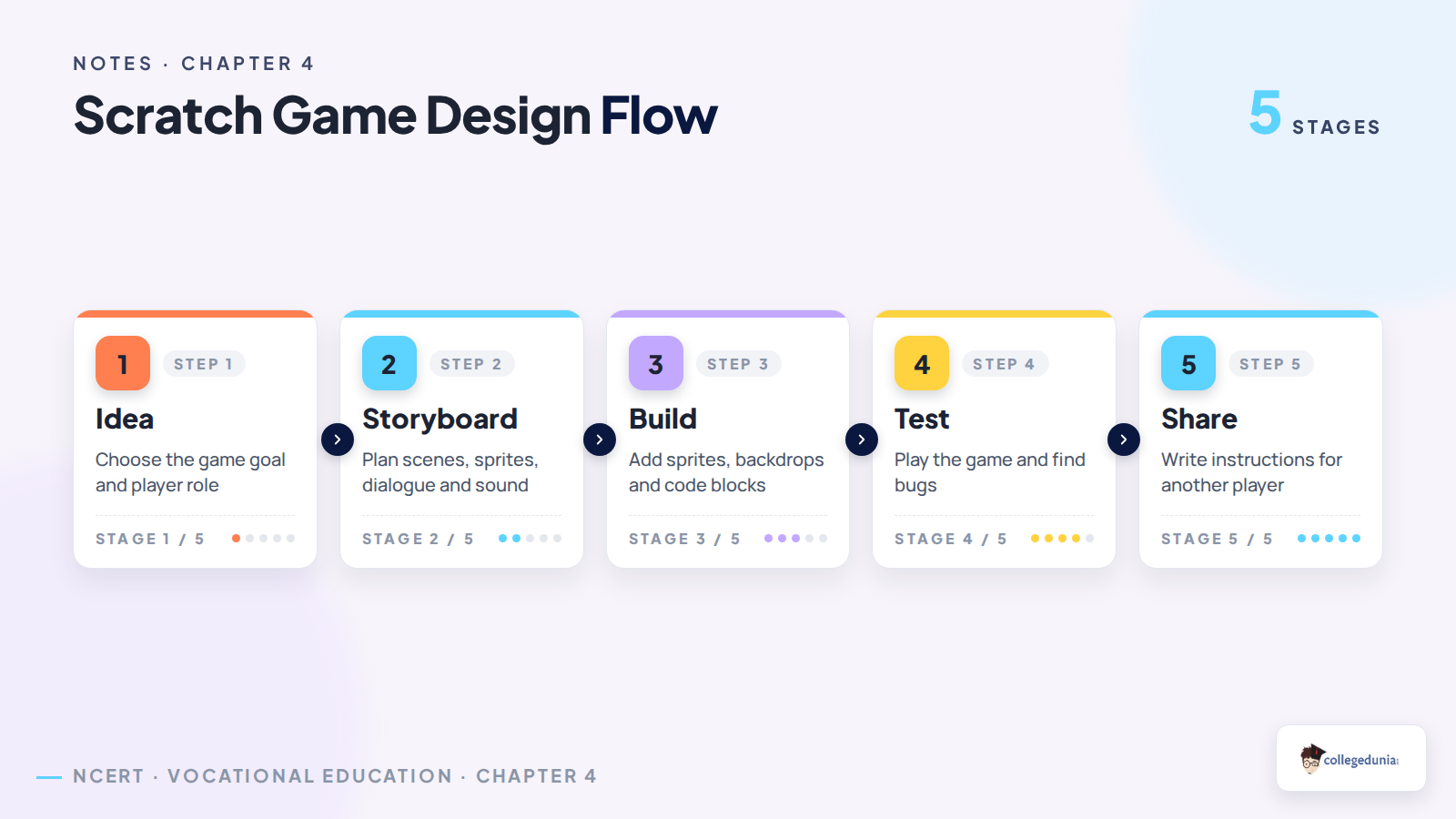
| Stage | What Students Do | Output |
|---|---|---|
| Idea | Choose the goal, rules, challenge and player role. | Game plan |
| Storyboard | Plan scenes, sprites, dialogue and sound. | Scene sheet |
| Build | Add sprites, backdrops and code blocks in Scratch. | Working project |
| Test | Play the game, find bugs and improve the design. | Bug checklist |
Scratch Animation Basics Video
Source: Khan Academy Computing on YouTube
What is Scratch in Class 6 Animation and Games?
Scratch is a visual programming language. Students join blocks instead of typing long programs. This makes it easier to create a small animation, birthday card or game without worrying about spelling every command.
Classroom-use anchor: A common class question is to label the stage, sprite list, block palette and code area in a Scratch window.
- Stage: the screen where the project runs.
- Sprite: a character or object that can move or speak.
- Backdrop: the background of the stage.
- Script: a set of joined blocks that gives instructions.
- Event: an action that starts a script, such as clicking the green flag.
Offline Games vs Online Games
NCERT asks students to compare games they already play. Offline games use real players, objects and spaces. Online games use sprites, rules, scores, sound and backgrounds inside a digital project. Important: both types need clear rules.
Classroom-use anchor: Compare one offline game with one online game. Explain the players, rules and winning condition.
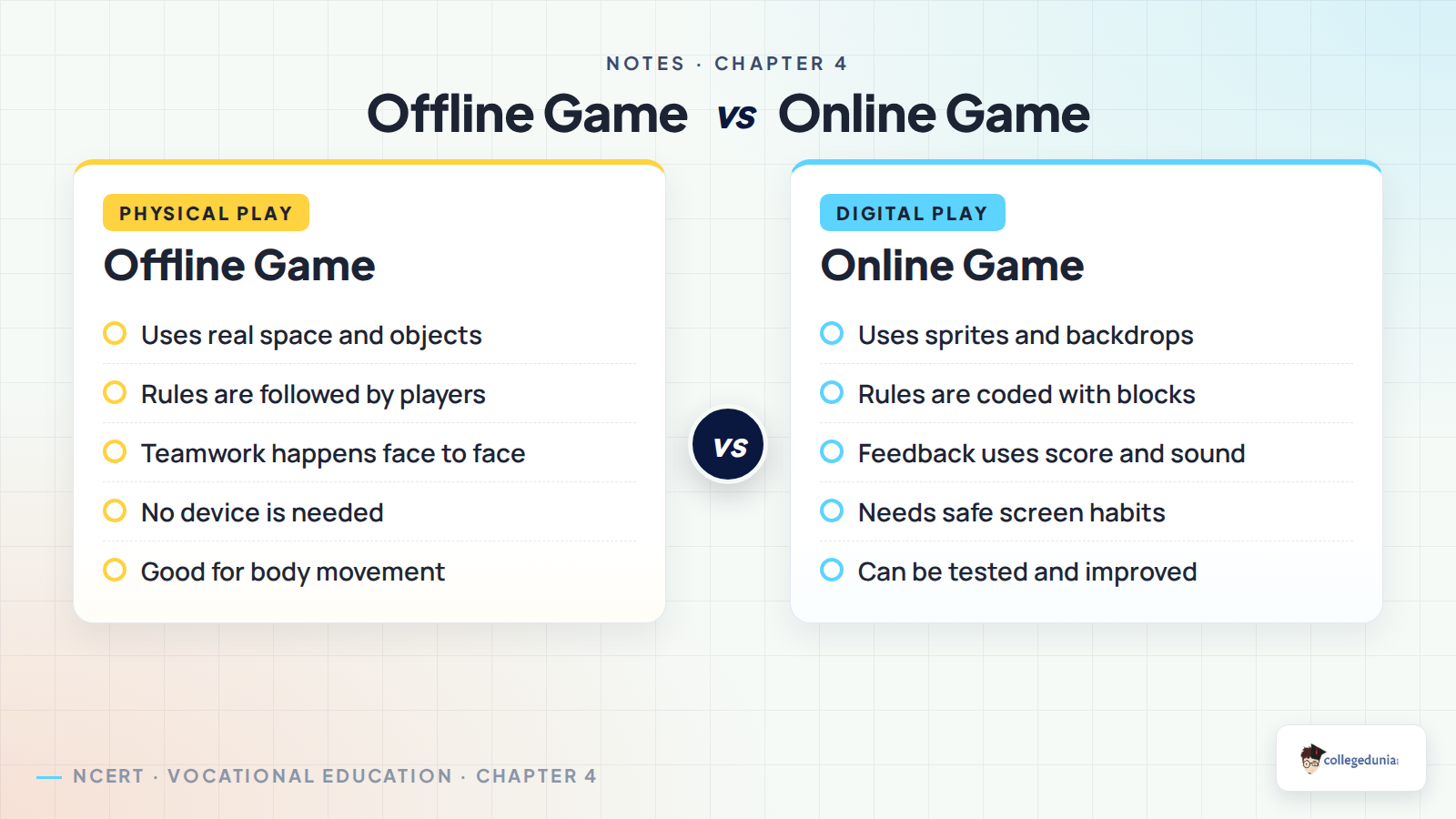
| Point | Offline Game | Online Game |
|---|---|---|
| Space | Playground, room or board. | Scratch stage or device screen. |
| Characters | Players and objects. | Sprites and objects. |
| Rules | Players follow rules directly. | Rules are coded with blocks. |
| Feedback | Other players respond. | Score, sound or message appears. |
How to Make a Model of Your Favourite Game
Activity 2 asks students to make a model of a favourite game with available craft material. This is important because a physical model helps students see the player area, object positions, rules and movement path before making the digital version.
- Choose a familiar game such as cricket, Ludo or a simple maze game.
- Use cardboard, paper, clay, bottle caps, thread or any safe waste material.
- Show the playing area, players, objects, goal and starting point.
- Add labels for rules, score, win condition and unsafe zones if any.
- Draw a sketch or paste a photograph of the model in the project record.
| Model Part | What it Shows | Scratch Link |
|---|---|---|
| Board or field | The area where the game happens. | Backdrop or stage |
| Player token | The person or object controlled by the player. | Main sprite |
| Obstacles or rewards | Challenge, points or difficulty. | Objects, sensing and score |
| Rule labels | How to play fairly. | Instructions and game logic |
Classroom-use anchor: Attach a sketch or photo of the model. Explain how it helped plan sprites, objects and rules.
Sprites, Backdrops and Costumes
A sprite is the main character or object in a Scratch project. It can move, talk, hide, show or change costume. A backdrop tells where the action happens. A good game keeps sprite, backdrop and story connected.
Classroom-use anchor: Students may be asked to identify the player sprite, object sprite and backdrop used in their own project.
- Use one player sprite first.
- Add one or two objects only after the first script works.
- Choose a backdrop that matches the story.
- Change costumes only when it helps the animation.
- Take permission before using a real person's photo.
Scratch Blocks Used in Animation and Games
The chapter uses motion, looks, sound, events, control, sensing and variables. Students should learn what each block group does before building a full game.
Classroom-use anchor: A project review may ask which event starts the game and which condition changes the score or ends the game.
| Block Group | Use | Example |
|---|---|---|
| Motion | Moves or turns a sprite. | Move 10 steps. |
| Looks | Changes speech, costume or size. | Say hello for 2 seconds. |
| Events | Starts a script. | When green flag clicked. |
| Control | Repeats or decides actions. | If touching wall, then bounce. |
| Sensing | Checks touch, colour or key press. | If touching star, add score. |
| Variables | Stores score, lives or timer. | Change score by 1. |
How to Make a Storyboard for a Scratch Game
A storyboard is a roadmap for the game or animation. It helps students decide what will appear on the screen before coding starts. This saves time because the student does not stop after every block to think about the next scene.
Classroom-use anchor: Notebook checks often ask students to fill one storyboard row before they start coding the Scratch project.
- Write the name of the story or game.
- Number each scene.
- List characters, backgrounds and objects.
- Write actions, dialogue and sound.
- Add special instructions for the scene.
Testing and Debugging a Scratch Game
Testing means playing the project to check whether it works. Debugging means finding and fixing errors. Students should ask classmates to play the game because a new player can find problems the maker may miss.
Classroom-use anchor: Peer review may ask each group to record one bug found by another student and one change made after feedback.
| Bug | Likely Reason | Fix |
|---|---|---|
| Sprite does not move | Event block is missing. | Add a green flag or key event. |
| Score does not change | Variable block is missing. | Add change score by 1. |
| Sound repeats too much | Sound is inside a forever loop. | Move it outside the loop. |
| Game never ends | No ending condition is coded. | Add a timer, lives or stop rule. |
Digital Safety and Screen Habits
Animation and Games uses internet search, Scratch accounts, online tutorials and sometimes uploaded images. Students should follow teacher and family guidance. They should also balance screen time with outdoor play and rest.
Classroom-use anchor: For oral discussion, students may be asked why screen time should be balanced and why permission is needed before uploading a photo.
- Use an email address only with adult permission.
- Do not share address, phone number or personal details.
- Ask before uploading any photo.
- Use safe search prompts for Scratch tutorials.
- Stop and ask a teacher if a website looks unsafe.
Related Class 6 Kaushal Bodh Resources for Animation and Games
| Resource | Use It For | Link |
|---|---|---|
| NCERT Book PDF | Read the official chapter text and activities. | Animation and Games NCERT Book PDF |
| Handwritten Notes | Revise the project in a quick notebook format. | Class 6 Animation and Games Handwritten Notes |
| NCERT Notes | Use this PDF for concepts, checklists and project revision. | Class 6 Animation and Games Notes |
Class 6 Vocational Education Kaushal Bodh Notes Chapter List
| Chapter | Notes Link |
|---|---|
| Chapter 1 School Kitchen Garden | School Kitchen Garden Notes |
| Chapter 2 Biodiversity Register | Biodiversity Register Notes |
| Chapter 3 Maker Skills | Maker Skills Notes |
| Chapter 4 Animation and Games | Animation and Games Notes |
| Chapter 5 School Museum | School Museum Notes |
| Chapter 6 Cooking without Fire | Cooking without Fire Notes |
Class 6 Animation and Games Notes FAQs
Ques. What is Animation and Games in Class 6 Kaushal Bodh?
Ans. Animation and Games is a project where students use Scratch to create sprites, backdrops, simple scripts, animations and games.
Ques. What is Scratch in Animation and Games?
Ans. Scratch is a visual programming language where students join blocks to give instructions to sprites and create animations or games.
Ques. Why is storyboard important in a Scratch game?
Ans. A storyboard plans the scenes, characters, actions, dialogue and sound before coding starts, so the project becomes easier to build.
Ques. How should students test a Scratch game?
Ans. Students should play the game, ask classmates to try it, note bugs and fix one problem at a time before sharing the final version.



Comments